Updated September 4, 2026 · 3 min read
Written by Hassan Raza, Founder & Developer of EasyPDFLoad.
How to Reduce PDF File Size Without Losing Quality (2026)
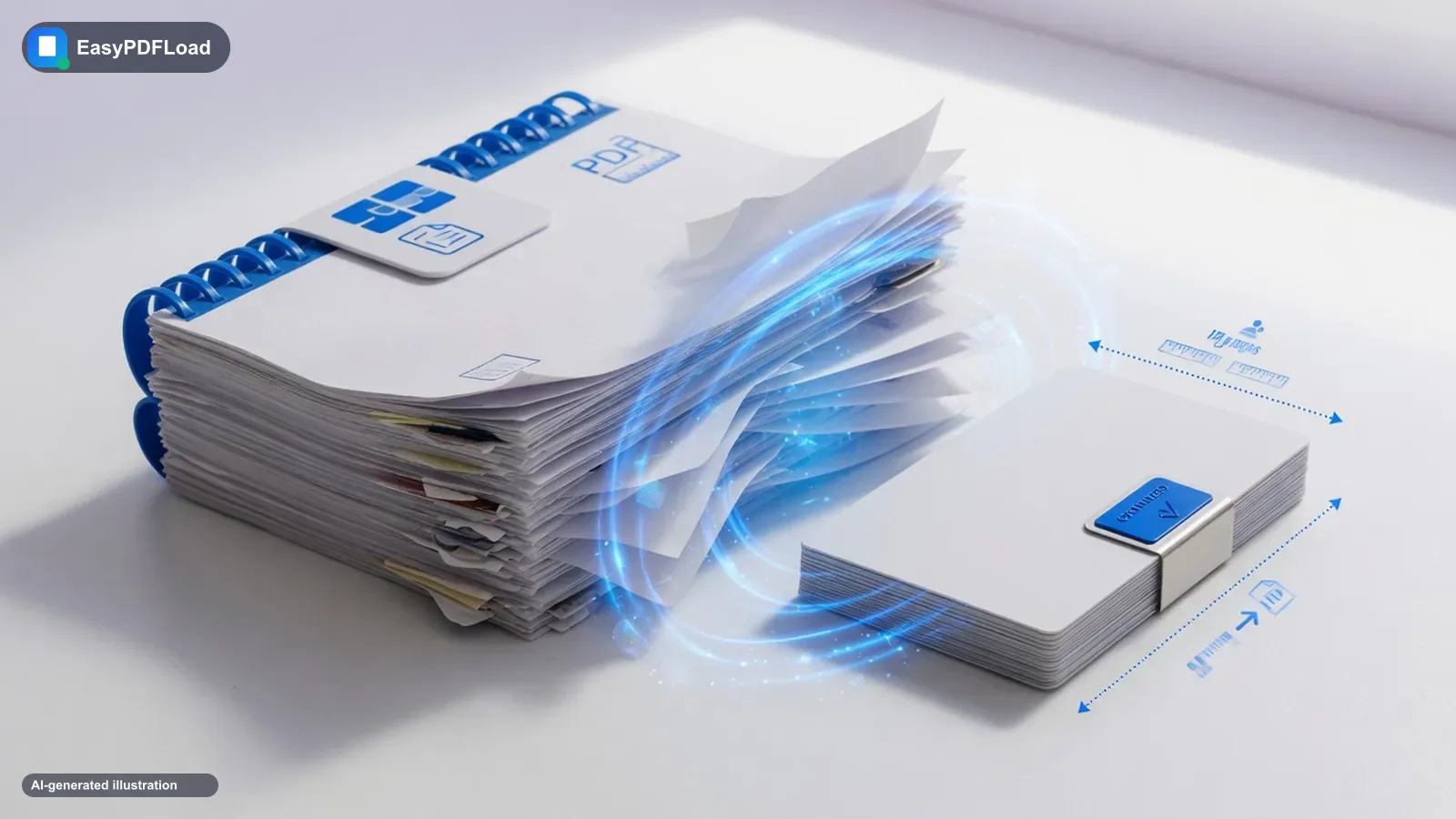
Short answer: You can reduce PDF file size without losing quality by downsampling images to about 150 DPI (screen) or 300 DPI (print), then re-encoding them. Image-heavy PDFs often shrink 50–90%. Text-only PDFs may only drop 10–30% because they are already compact. Do this in a browser compressor that never uploads the file if the PDF is a contract, ID, or tax form.
Gmail rejects attachments over 25 MB. Job portals, university uploads, and many government forms cap you even lower. People search “how to make PDFs less large” for the same reason: the file is fine to read, it just will not send. The rest of this page is the method that actually shrinks it without turning text into mush.
What makes a PDF file large?
Embedded images. A phone photo dropped into a Word doc at full resolution can add several megabytes per page. Scans at 600 DPI look identical to 200 DPI on a laptop screen and four times heavier. Fonts, form fields, and metadata add a little; they almost never explain a 40 MB file.
That is why a 200-page text report can be smaller than a 5-page scan of receipts. If your PDF is photos or scans, compression will move the needle. If it was exported from Google Docs with no images, it may barely shrink — and that is expected, not a broken tool.
Compression levels (what “without losing quality” actually means)
“Without losing quality” means visually lossless on screen, not bit-for-bit identical. For email and web, 150 DPI is the usual sweet spot. Print shops still want ~300 DPI. Going to 72 DPI is what makes logos fuzzy.
| Level | Typical reduction | Use it for |
|---|---|---|
| Low | 20–40% | Print-ready, portfolios, anything you might reprint |
| Recommended | 50–70% | Email, uploads, most “make it less large” jobs |
| Extreme | 70–90% | Internal drafts, phone viewing — expect softer photos |
How to reduce PDF file size without losing quality (in the browser)
- Open the Compress PDF tool. The file is read in this tab. It is not uploaded.
- Drop in the original PDF — not a copy you already squeezed once.
- Start with Recommended. That is the setting that matches “reduce PDF size without losing quality” for screen reading.
- Download and check two things: the new file size, and a zoomed-in page with text. If photos look soft, run Low on the original instead of compressing the compressed file again.
How to make PDFs less large for email
If Gmail, Outlook, or a portal bounced the file, Recommended compression plus deleting unused pages is usually enough. A 40 MB scan pack often lands under 8 MB. If it is still over 25 MB, split the PDF into two attachments rather than hammering Extreme until the pages look bad.
Other ways to shrink a PDF
- Delete pages you do not need. Remove blank or extra pages first so you are not compressing junk.
- Scan at 150–200 DPI if you still have the paper. That beats compressing a 600 DPI camera scan later.
- From Word / Google Docs: export with the “minimum size” or “optimize for electronic distribution” option so images start at ~150 DPI.
- Do not recompress the same JPEG PDF five times. Each pass adds artifacts. Always go back to the best original.
- Only need a few pages of a large scan? Extract just those pages into a new file instead of compressing — and sending — the whole document.
- Sending several small files? Merge them into one attachment first — one compressed file is usually smaller overhead than five separate ones.
How much smaller will it get?
| What you have | Typical result |
|---|---|
| Scanned receipts / IDs | 50–90% smaller on Recommended |
| Photo-heavy brochure | 40–75% smaller; use Low if it will be printed |
| Text from Word / Docs | Often 10–30%. Already efficient. |
What happens to the text when you compress a PDF
Worth knowing before you compress a contract or a report: this method (and most browser-based compressors) works by re-rendering every page as an image at a lower resolution, then re-encoding that image as a smaller JPEG. That's what makes the size drop so dramatic on a scan. The trade-off is that any real, selectable text in the original — the kind you can highlight and copy — becomes part of a flattened image in the output. You can no longer select or search it.
For a document that was already just a scan (a photographed receipt, say), nothing is lost — it was pixels before and it's pixels after, just smaller. For a PDF exported from Word or Google Docs with real text, compressing it trades searchability for file size. If you need both — a smaller file and text you can still search — keep the original for reference and only share the compressed copy when size is what matters.
Compress vs. other ways to shrink a PDF
| Method | Best for | Keeps selectable text? |
|---|---|---|
| Compress PDF | Scan-heavy files, image-heavy brochures | No — pages become images |
| Delete unused pages | A file with blank or irrelevant pages padding it out | Yes — pages are just removed, not re-rendered |
| Split into two files | A file over a hard limit (like Gmail's 25 MB) that's mostly text | Yes — pages are copied, not re-rendered |
If your file is mostly real text and you need to keep it searchable, deleting unused pages or splitting it into two attachments does more good than pushing Extreme compression on a document that was never image-heavy to begin with.
PDF compression FAQ
Can I reduce PDF file size without losing quality for free?
Yes. Use Recommended compression in the free Compress PDF tool. No account, no watermark, and the file never leaves this device.
Will compression blur the text?
Real text (not a photo of text) stays sharp because it is not a JPEG. Blurry letters usually mean the whole page was a scan and Extreme was too aggressive — drop back to Recommended or Low.
Will I still be able to search or copy text after compressing?
No. Compression re-renders every page as an image, so text that was selectable in the original is not selectable or searchable afterward. Keep the original file if you'll need to search or copy from it, and only share the compressed copy for its smaller size.
What's the fastest way to get under Gmail's 25 MB limit?
Run Recommended compression on the original file first — it handles the vast majority of oversized scans on its own. If it's still too big afterward, delete pages you don't need or split the file into two attachments rather than jumping straight to Extreme.
Next: if the PDF is still awkward to send, merge the pages you need first, then compress once. And if you are uneasy about online compressors, read whether it is safe to convert a PDF online.