Merge PDF on iPhone for Free: PDF Tools for iPhone and iPad
Merge PDF on iPhone for free, reduce PDF size on iPhone, or sign PDF on iPhone with the same tools you would use on a laptop. Open this page in Safari, and the tool runs right there in your tab, with no trip to the App Store, no install, and no storage taken up on your phone.
The Files app can already merge PDFs. Select the files, tap the three dots, choose Create PDF. If that does the job, use it and skip this site. The rest of this page covers what Files cannot do.
Merge PDFs with the Files app, no website needed
Files joins several PDFs into one without any extra app. It is the fastest route when the PDFs are already in one folder and their file names sort in the order you want.
- Open the Files app and go to the folder that holds your PDFs.
- Tap the three dots at the top right, then tap Select.
- Tap each PDF you want to combine.
- Tap the three dots at the bottom right, then tap Create PDF.
Files saves the combined PDF in the same folder and leaves the originals where they are. It joins the files in name order, so rename them first (touch and hold a file, then tap Rename) if the order matters, and open the result before you send it.
Where the Files app runs out
Files gives you no preview or reordering while you merge, no way to take only some pages from a file, and nothing that shrinks a PDF to fit an upload limit. Its Compress action makes a ZIP archive, which does not make the PDF itself smaller. It also cannot set or remove a password.
Those gaps are what the browser tools here are for. They run in Safari, so there is still no app to install.
- You need to set the order, and see what you are joining, first: Merge PDF and Reorder PDF Pages.
- A form or portal rejects the file as too large: Compress PDF to an exact size.
- You have photos of pages, not PDFs: JPG to PDF.
- You need to drop pages or sign: Delete PDF Pages and Sign PDF.
How to merge PDFs on an iPhone in Safari
The files are read and joined inside the Safari tab. Your file does not leave your device, and you can check that in a desktop browser's Network tab, as this page explains.
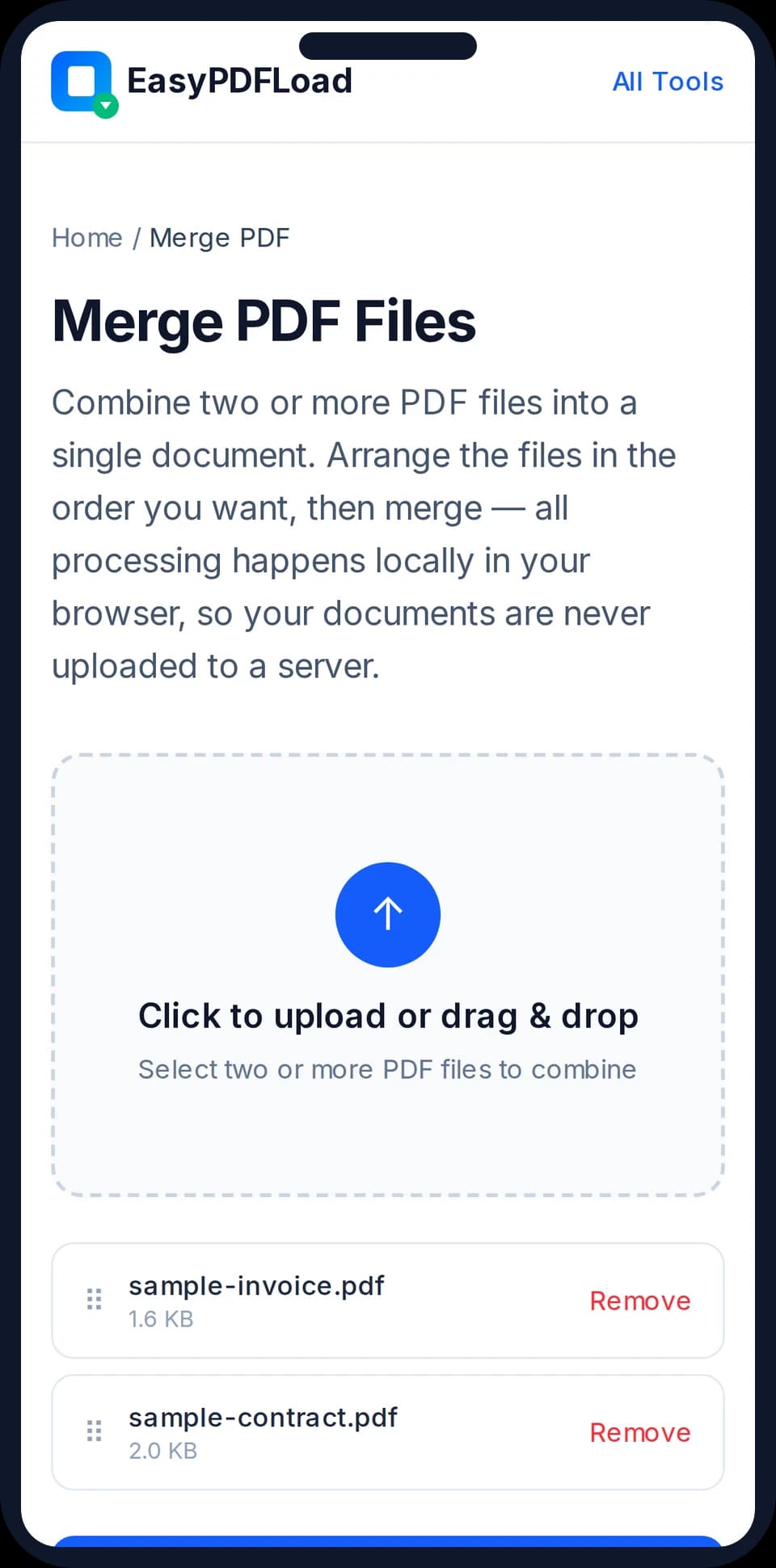
- Open the Merge PDF tool in Safari.
- Tap the drop area, then pick the PDFs from Files or iCloud Drive.
- Put the files in the order you want, using the move buttons on each card or by dragging.
- Run the merge, then save the combined PDF to Files from the download prompt.
Does it work offline on an iPhone?
Once a tool page has finished loading, yes: you can switch on Airplane Mode and keep working. Closing the tab and reopening it without a connection does not work, because the site has no service worker, and OCR needs a connection for its first run. Which tools we tested offline.
Limits on an iPhone
Safari limits how much memory a single tab may use, and the work happens in that tab. A large scan, or dozens of full-size photos, can fail on an older iPhone where a laptop would manage. If a merge stalls, close other tabs, merge in two smaller batches, or compress the biggest file first.
Nothing to install
There's no app to download or update. Open the link, use the tool, and close the tab — it's gone from your phone the moment you're done.
Works with your existing Photos and Files apps
Pick images straight from your Camera Roll or a PDF from the Files app using Safari's normal file picker — the same one every app on iOS uses.
Merge PDF on iPhone for free, without uploading
Processing happens locally in Safari using JavaScript — a photo or PDF you select is never uploaded anywhere, even though you're using it through a website.
Tools that work great on iPhone & iPad
Every other tool on the site works the same way on a iPhone & iPad — see the full list.
Tips for using these tools on iPhone & iPad
- 1In the Photos app, tap "Select" and choose multiple photos before switching to Safari — the upload picker can pull from that same selection.
- 2Add this site to your Home Screen (Share → Add to Home Screen) so your most-used PDF tool is one tap away, without it being a real installed app.
- 3If Safari shows a low-storage warning on a very large PDF, close a few other tabs first — processing uses your phone's memory, not ours.