Merge PDF Files
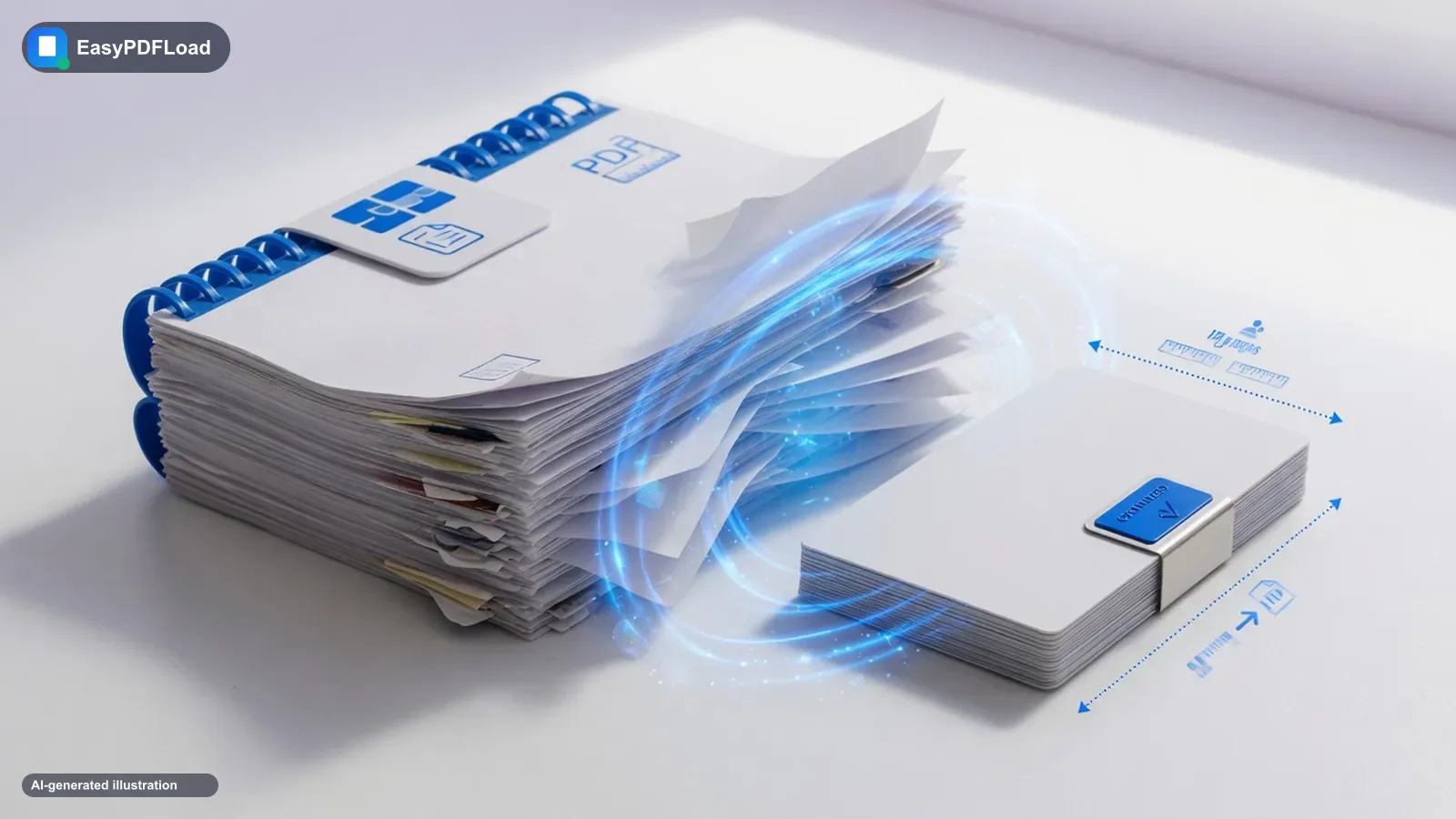
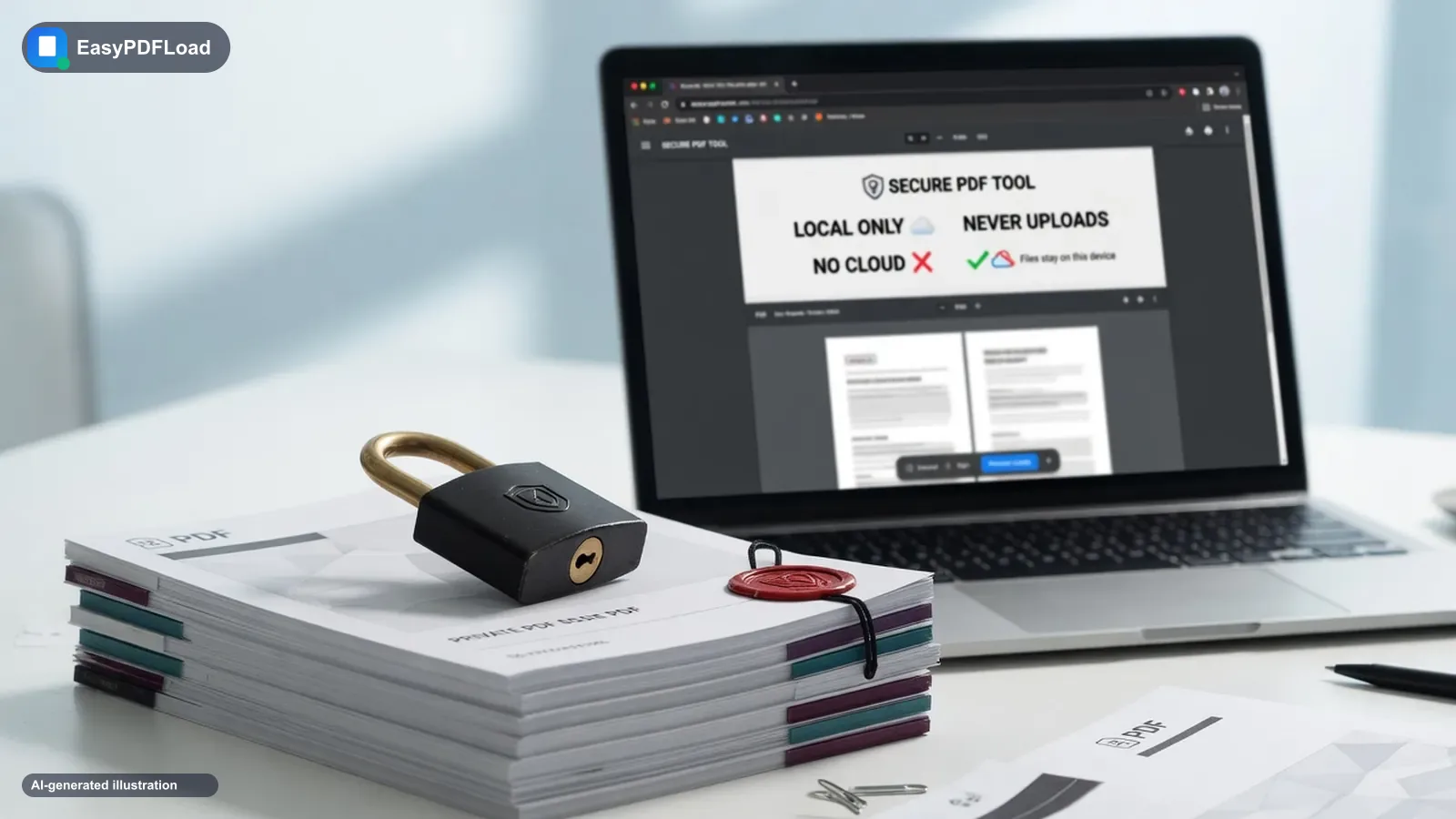
Combine two or more PDF files into a single document. Arrange the files in the order you want, then merge — all processing happens locally in your browser, so your documents are never uploaded to a server.
Drop your file here, or click to choose
Select two or more PDF files to combine
How to merge pdf
 1
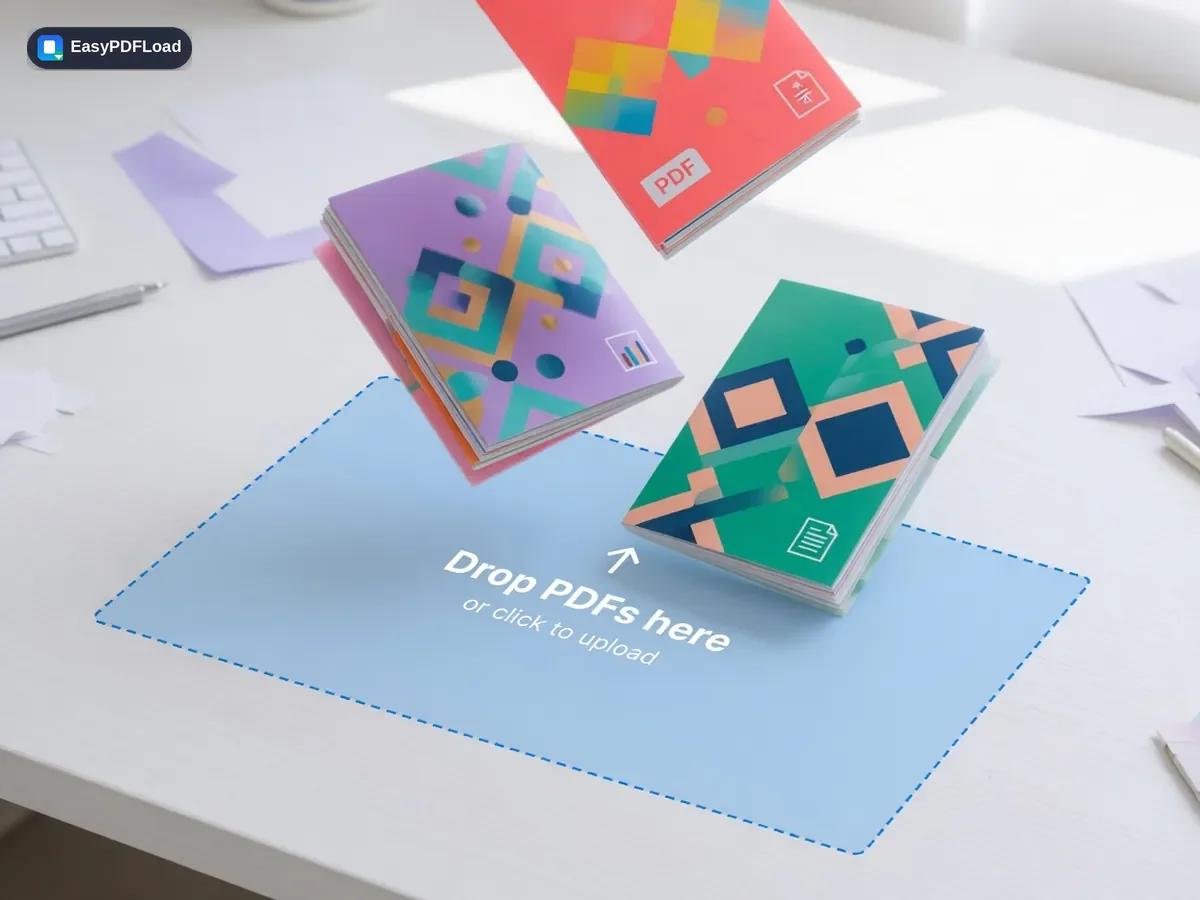
1Drop your PDFs
Drop two or more PDF files into the tool, or click to choose them — they stay on your device.
 2
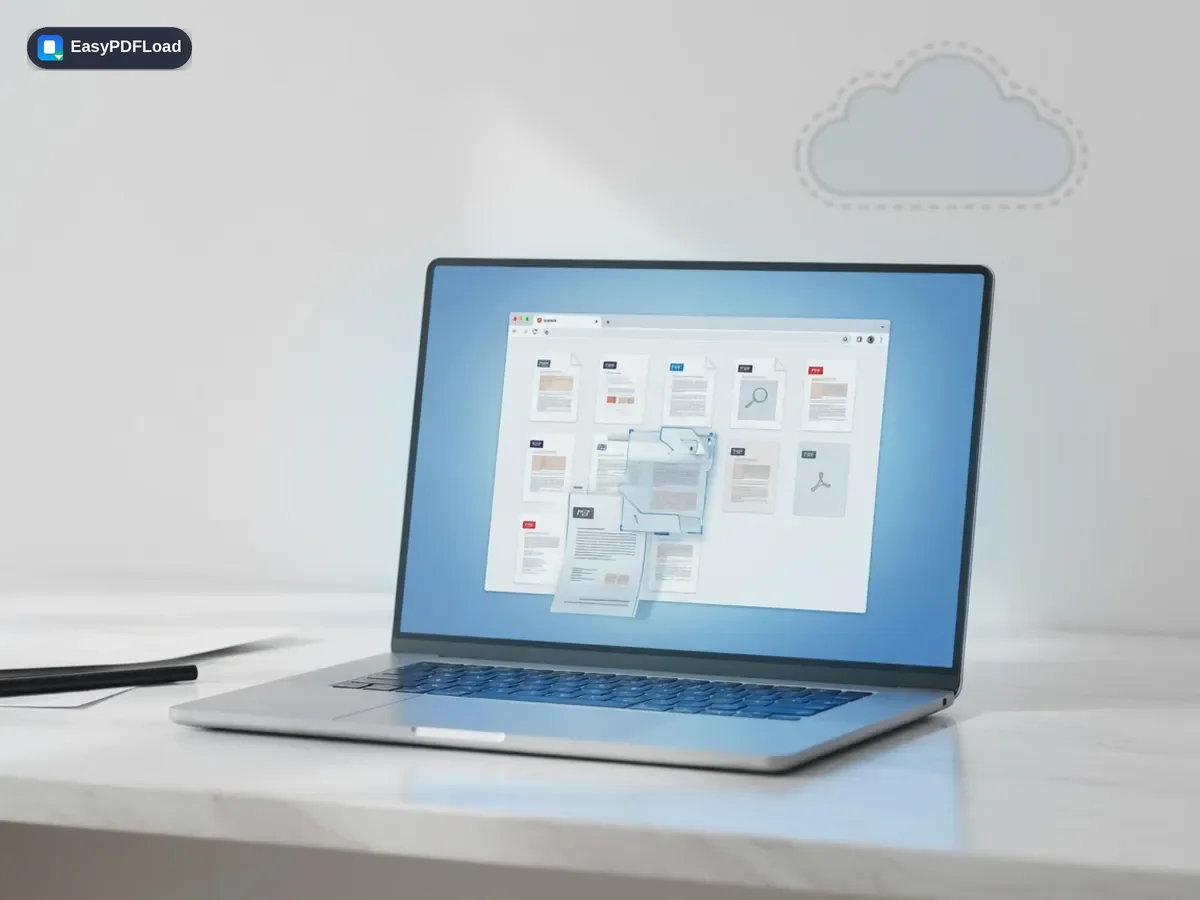
2Reorder the files
Drag the file thumbnails to reorder them into the sequence you want in the final document.
- 3
Merge them
Click "Merge PDFs" to combine every file into a single PDF.
 4
4Download
Download the merged PDF instantly — it's generated on your device, nothing is sent anywhere.
Why use our Merge PDF tool?
- 🔒 Merge PDF files online free without uploading them — your documents are combined right inside your browser tab, so contracts, statements, and IDs never touch a server.
- 🧩 Drag-and-drop reordering means you don't have to get the file order right before you start — fix it visually and merge once.
- 💸 No sign-up, no page-count cap, and no watermark stamped across your combined PDF, unlike a lot of "free" merge tools.
- 📱 Works the same way on a phone browser as it does on desktop, so you can combine PDFs even when you're away from your laptop.
A real use case
Say a mortgage portal asks for one PDF and you have three: the signed application, a scanned ID, and a pay stub. Drop all three in, drag the ID above the pay stub, and merge — one file, right order, ready to upload to the bank's portal (not to us). The same pattern works for a freelance invoice packet (cover letter, invoice, W-9) or for combining a trip's scanned receipts into a single file for an expense report.
What actually happens to your file
pdf-lib reads each file directly in this tab and copies its pages — unchanged — into a new document object. Nothing is rasterized, re-encoded, or sent anywhere: merging is a page copy, not a re-render, which is why it never blurs text or recompresses images. Once you click Merge PDFs, the combined file is written to memory and handed to your browser's download manager. Close the tab and that in-memory document is gone — there's no server copy or temp file to clean up, because there was never a network request in the first place. Open DevTools' Network tab before merging and you won't see your file data leave the page.
Limits and edge cases
- No enforced page or file-count cap — the real ceiling is your device's memory, so fifty 100-page scans is a heavier lift on a phone than on a laptop.
- Password-protected PDFs need to be unlocked first — merging reads pages directly and can't open an encrypted source file. Use Unlock PDF, then merge.
- Each source file's page size and orientation carries over as-is; merging doesn't resize page 2 to match page 1, so mixed A4/Letter documents merge with different page dimensions side by side (cosmetic, not broken).
- Interactive form fields from a source PDF may not carry over identically, since each page is copied as a page object rather than a form structure — treat merge as a page-and-content operation, not a form editor.
What happens when the files you're merging don't match
| Situation | What Merge PDF does | Fix, if you need one |
|---|---|---|
| Mixed A4 and Letter pages | Each page merges at its original size — nothing is resized to match. | Usually none needed; it's cosmetic unless a printer needs uniform pages. |
| Mixed portrait and landscape | Each page keeps its original orientation as copied from the source file. | No fix needed — this is expected. |
| One file is password-protected | Merge can't open it — encrypted pages can't be read directly. | Run Unlock PDF first, then merge the unlocked copy. |
| One file has fillable form fields | Pages copy as content; the interactive form structure may not carry over. | Fill the form first with Fill & Sign, then merge. |
Frequently asked questions
Is it safe to merge PDF files here?+
Can I merge PDF files without uploading them to a server?+
Is there a limit to how many PDFs I can merge?+
Will merging affect the quality of my PDFs?+
Do I need to install any software?+
How do I join PDF files — is that different from merge?+
Can I merge PDF files on an iPhone without an app?+
Related tools
Related guides
Using a phone or tablet? See our iPhone & iPad guide for device-specific tips.