Convert PDF to Text
Pull the selectable text out of a PDF into a plain .txt file you can copy, search, or paste elsewhere. This reads the text layer already in the document — it is not OCR — so it's fast, and nothing is uploaded.
Drop your file here, or click to choose
Extracts selectable text already in the PDF. For scans, use OCR PDF instead.
Why convert with PDF to Text instead of desktop software?
- 📄 Convert PDF to text online free without uploading the file to a conversion server.
- ⚡ Instant for documents that already have a text layer (Word/Google Docs exports) — no OCR wait.
- 🔒 Extraction runs in your browser, so a contract or statement isn't sent anywhere just to copy the words.
- 💸 Free, with no signup and no watermark (plain text doesn't get one anyway).
Converting with PDF to Text, step by step
 1
1Drop the PDF
Drop a PDF that already has selectable text into the tool — it stays on your device.
 2
2Wait for extraction
Wait a moment while each page's text layer is read in this tab.
- 3
Review the text
Review the extracted text. Edit it in the box if you want to clean a line before saving.
 4
4Download the .txt
Download a .txt file, or copy the text to the clipboard.
Where this comes up
A researcher has a 40-page PDF of meeting minutes exported from Word and needs the text in a notes app that doesn't open PDFs. Drop the file in, copy the extracted text, and paste — or download the .txt if the notes app prefers a file. If the PDF had been a phone photo of those minutes instead, this tool would come back nearly empty and OCR PDF would be the right next step.
How the conversion actually works
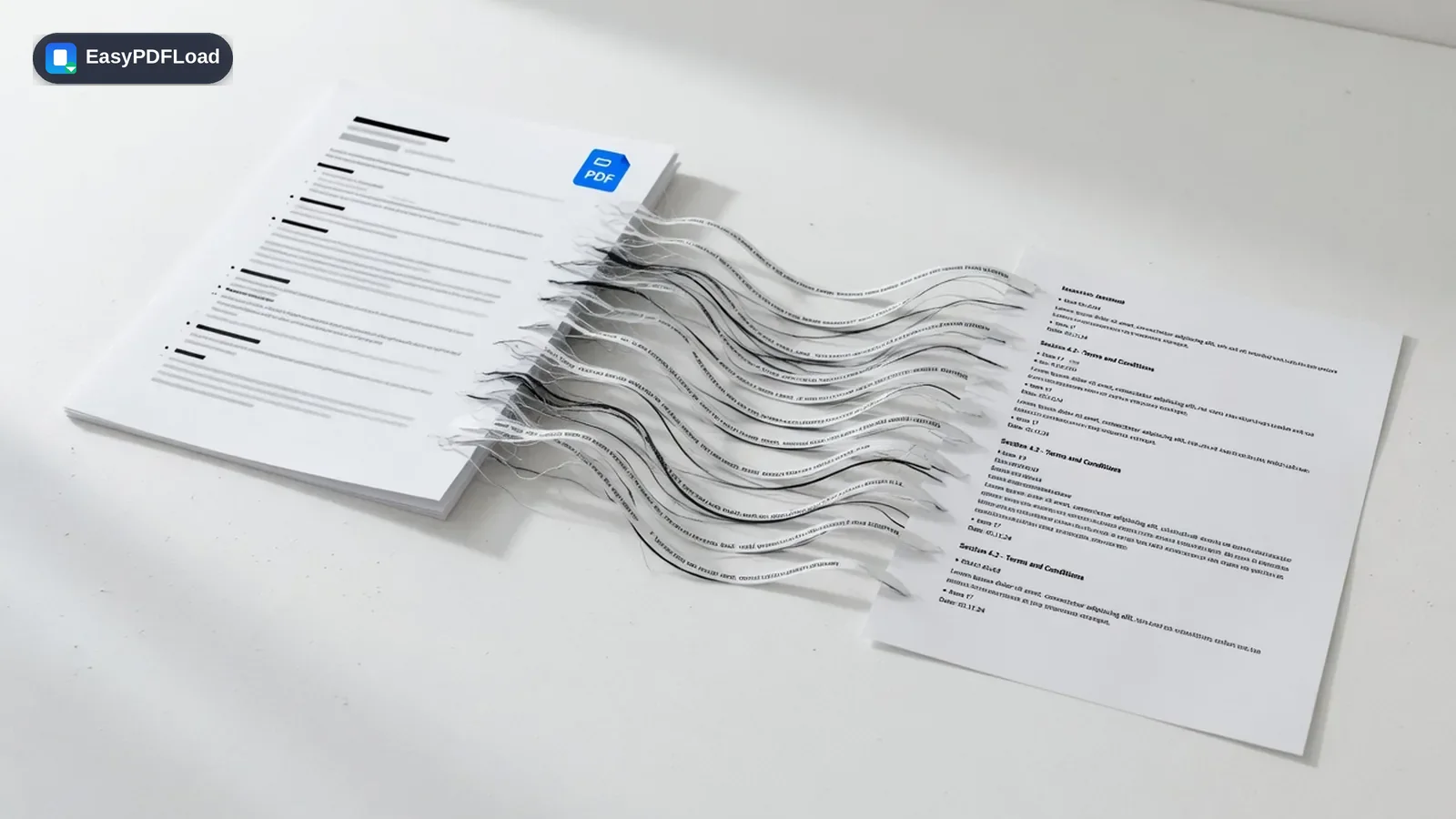
pdf.js opens the file in this tab and reads each page's existing text layer (the same content a PDF reader uses when you select and copy). Items are grouped into lines by their on-page position so the .txt keeps a rough reading order, then joined with page separators. Nothing is rendered as an image and no OCR engine is loaded — if the PDF has no text layer, the output is empty (or nearly empty) and the tool points you at OCR PDF. Close the tab and the extracted text is gone from memory along with the file.
What to know before you convert
- This does not read scans or photos of pages. If you can't select text in a normal PDF reader, use OCR PDF instead.
- Complex layouts (multi-column articles, tables, footnotes) are flattened into reading-order lines — column order can occasionally mix if the original text objects aren't stored left-to-right.
- Hidden or clipped text that a PDF reader wouldn't show can still appear if it exists in the text layer.
- Password-protected files need to be unlocked first, since extraction has to open the document.