Sign a PDF
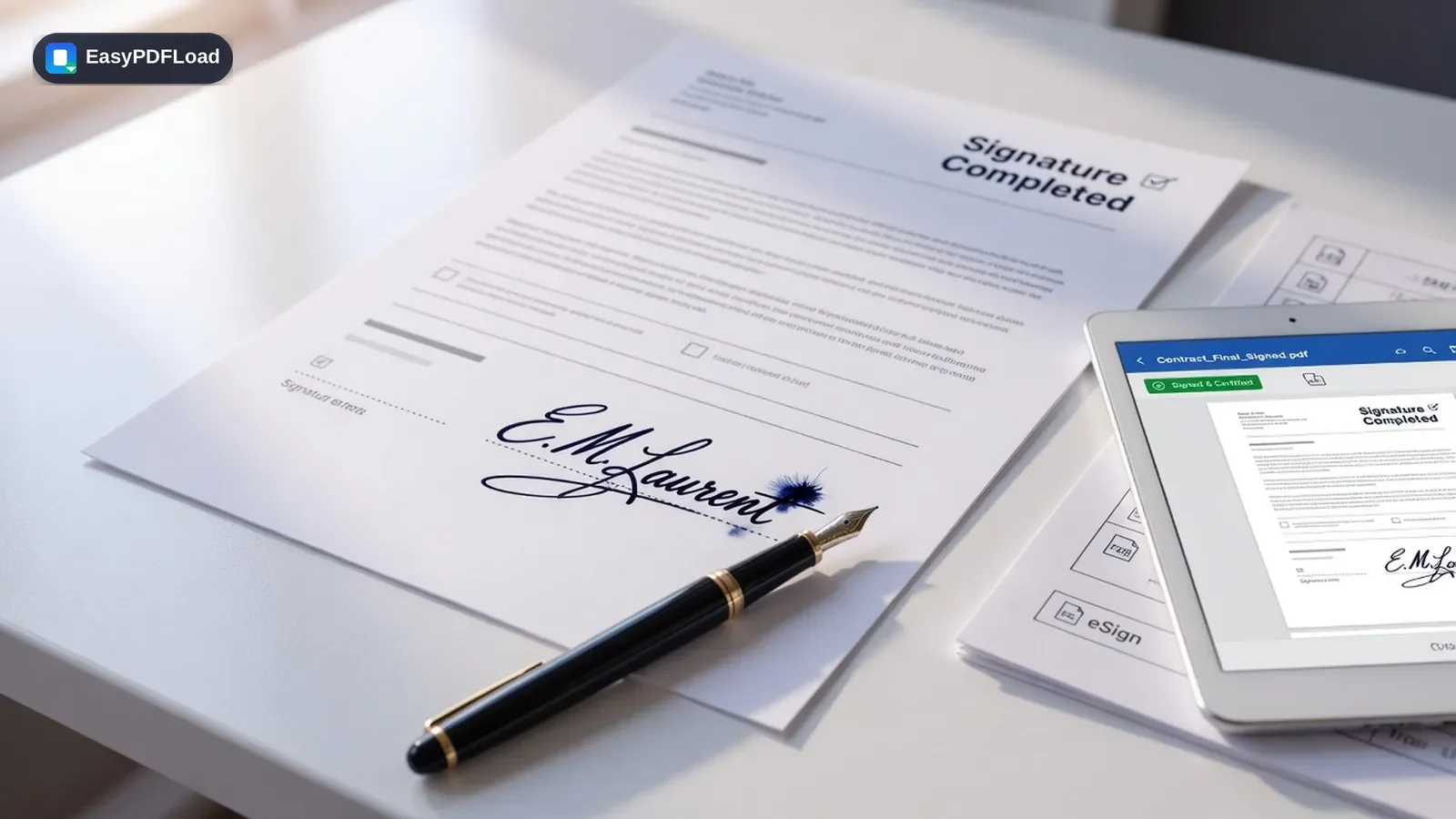
Add your signature to a PDF by drawing it with your mouse or finger, or typing it in a handwriting-style font. Drag it into position on the page you choose, then download the signed file — all generated locally in your browser.
Drop your file here, or click to choose
A real use case
A landlord emails a month-to-month lease renewal as a PDF and needs a signature back the same day, with no printer or scanner at home. Open Sign PDF, draw a signature with a trackpad or finger, drag it onto the signature line, and download the signed copy to email straight back — no printing, signing on paper, or re-scanning involved.
How to sign pdf
 1
1Drop the PDF
Drop the PDF you need to sign into the tool — it stays on your device.
 2
2Draw or type a signature
Choose the page your signature belongs on, then draw or type your signature.
- 3
Place it on the page
Drag the signature into position and resize it to fit.
 4
4Download
Click "Sign PDF" and download the signed file.
Why sign with Sign instead of printing and scanning?
- ✍️ Sign a PDF online free without creating an account or emailing your signature to anyone.
- 🖊️ Draw your signature with a mouse, trackpad, or finger, or type it in a handwriting-style font — whichever feels more like your real signature.
- 🔒 The signature is placed on the page entirely in your browser, so the document you're signing is never uploaded.
- 💸 Free, with no watermark added and no limit on how many PDFs you sign.
What actually happens to your file
Whatever you draw or type into the signature pad is captured as a transparent image directly in your browser's canvas — no photo, scan, or third-party signature service involved. When you click Sign PDF, that image is embedded onto the page you chose using pdf-lib, positioned and sized exactly where you dragged and scaled it, and the result is written to a new PDF in memory and handed to your browser to download. Your signature and the document you're signing both stay inside this tab from start to finish — there's no visible upload request in DevTools while you sign.
Limits and edge cases
- This adds a visual signature image to the page — it is not a cryptographically certified digital signature (like Adobe's certificate-based signing), so it won't satisfy workflows that specifically require certified e-signatures.
- The source PDF must be unencrypted; a password-protected file needs to be unlocked first, since signing reads and writes pages directly.
- Signing applies to one page per pass. To sign multiple pages, download the signed file, then re-upload it to add another signature to a different page.
- A PDF that carries restriction flags (even without a password) can occasionally fail to load here — if that happens, try Unlock PDF first, since some "protected but no password" files still block editing.
Is a visual signature actually enough for this document?
This tool places a signature image on the page — the digital equivalent of printing, signing by hand, and scanning a document back in. That's genuinely enough for most everyday paperwork, but not for everything. This isn't legal advice; when in doubt, ask the other party what they require before you sign and send.
| Document type | A visual signature like this one |
|---|---|
| Lease renewals, informal agreements, internal approvals, acknowledgment forms | Usually accepted — matches the print-sign-scan convention most recipients already expect. |
| Standard business contracts and NDAs between consenting parties | Often fine — most jurisdictions recognize an intentional signature like this as valid consent — but confirm if the other party has a specific e-signature policy. |
| IRS and other government forms, real-estate closing documents, notarized filings | Not sufficient — these typically require a certified e-signature service or an in-person/notarized signature, not an image placed on the page. |
Frequently asked questions
Is this a legally binding electronic signature?+
Does this work the same as printing, signing, and scanning a document?+
Can I sign more than one page?+
Is my signature uploaded anywhere?+
Can I resize or reposition the signature before signing?+
Can I sign a PDF on a school or work Chromebook?+
Related tools
Related guides
Using a Chromebook? See our Chromebook guide for device-specific tips.