Delete PDF Pages
Remove blank, duplicate, or unwanted pages from a PDF. Preview thumbnails of every page, select the ones you want gone, and generate a cleaned-up document.
Drop your file here, or click to choose
Editing your PDF with Delete Pages
 1
1Drop the PDF
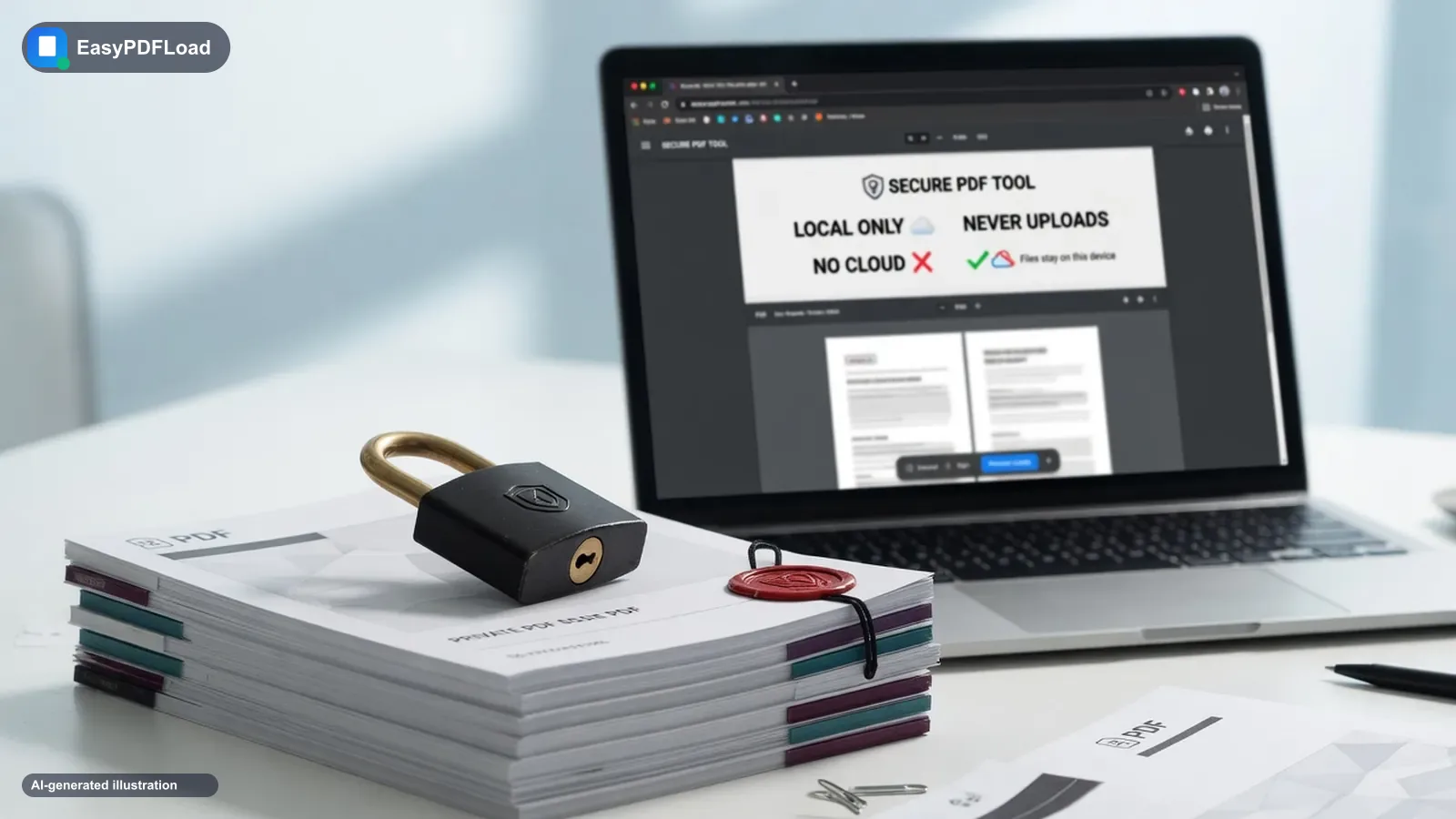
Drop the PDF you want to edit into the tool — it stays on your device.
 2
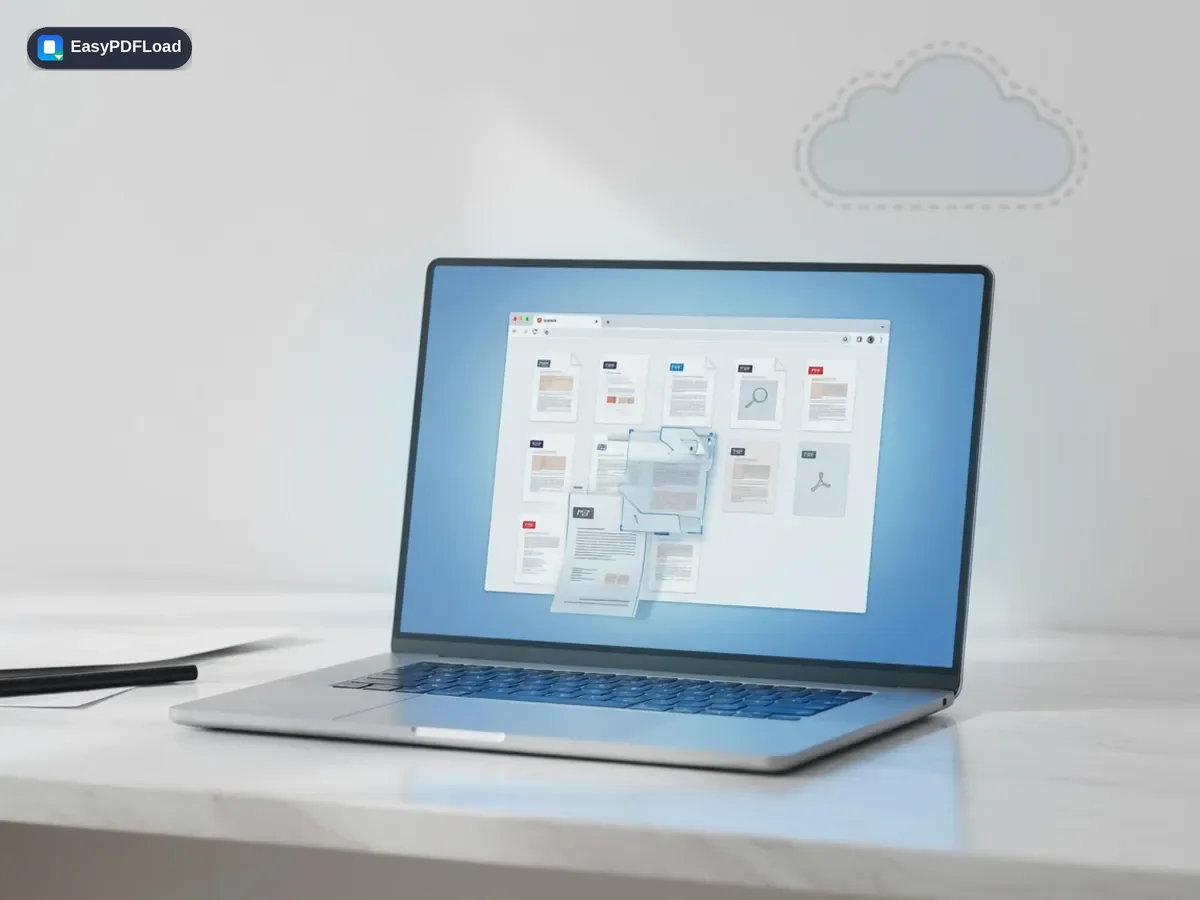
2Tap pages to remove
Click on the thumbnails of the pages you want to delete.
- 3
Delete them
Click "Delete Selected Pages".
 4
4Download
Download your new PDF with those pages removed.
A real use case
A freelancer receives a signed 12-page contract where the client accidentally included two blank fax cover pages and a duplicate signature page. Instead of asking for a re-send, open Delete PDF Pages, click the three thumbnails that don't belong, and download a clean 9-page contract ready to file.
Why edit with Delete Pages in your browser?
- 🗑️ Clean up a document by removing blank scans, duplicate pages, or a section you don't want to share, without redoing the whole file.
- 👀 Page thumbnails let you see exactly what you're deleting before you commit, so there's no guessing by page number.
- 🔒 Deletion happens in your browser — the original file isn't uploaded anywhere to be edited.
- 💸 No sign-up and no limit on how many pages you can remove in one pass.
What this changes in your file
pdf-lib builds a brand-new PDF document in this tab and copies over every page except the ones you selected, using the same page-copy approach as Merge — pages are transferred as complete page objects, not re-rendered or recompressed. The remaining pages keep their original text, images, and resolution untouched. The trimmed document is assembled entirely in memory and handed to your browser to download, with no version of your file sent to a server.
Limits and edge cases
- Deletion is permanent once you download — there's no server-side backup, so keep your original file if you might need those pages again.
- A password-protected source PDF must be unlocked first, since building the new document requires reading pages directly.
- Removing pages doesn't renumber existing page-number stamps or a table of contents your original file may contain — those are static content on the remaining pages, not live fields.
- Very long documents (hundreds of pages) are limited by your device's available memory rather than by any cap the tool enforces.
Frequently asked questions
Can I undo a deletion?+
Is there a page limit?+
Can I delete pages from a PDF on my iPhone?+
Related tools
Related guides
Using a phone or tablet? See our iPhone & iPad guide for device-specific tips.