Protect & Restrict a PDF
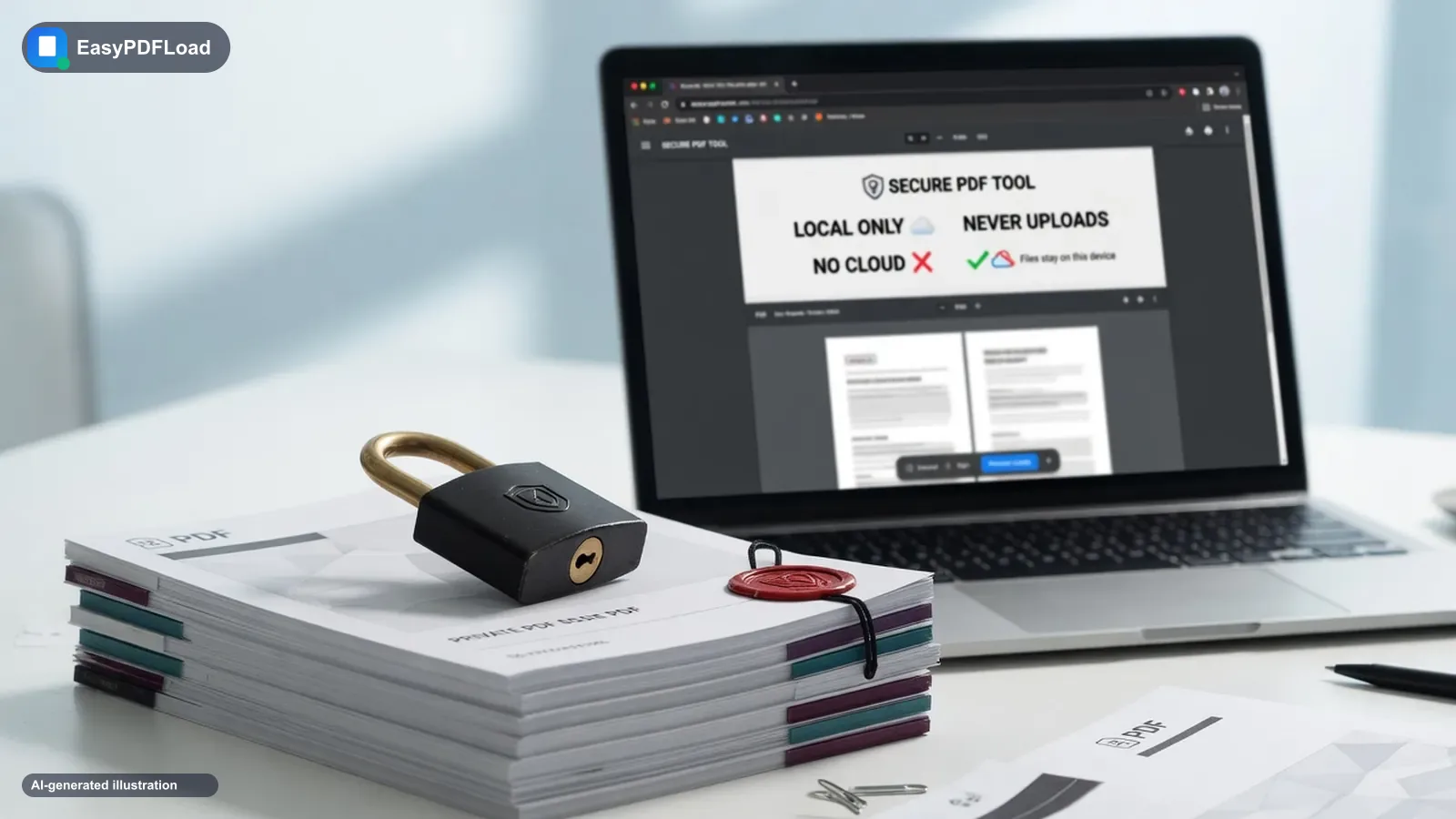
Encrypt your PDF with a password and choose exactly what readers are allowed to do — print, copy text, or edit the document. Everything is encrypted locally in your browser using standard PDF encryption.
Drop your file here, or click to choose
What happens to your file and your password
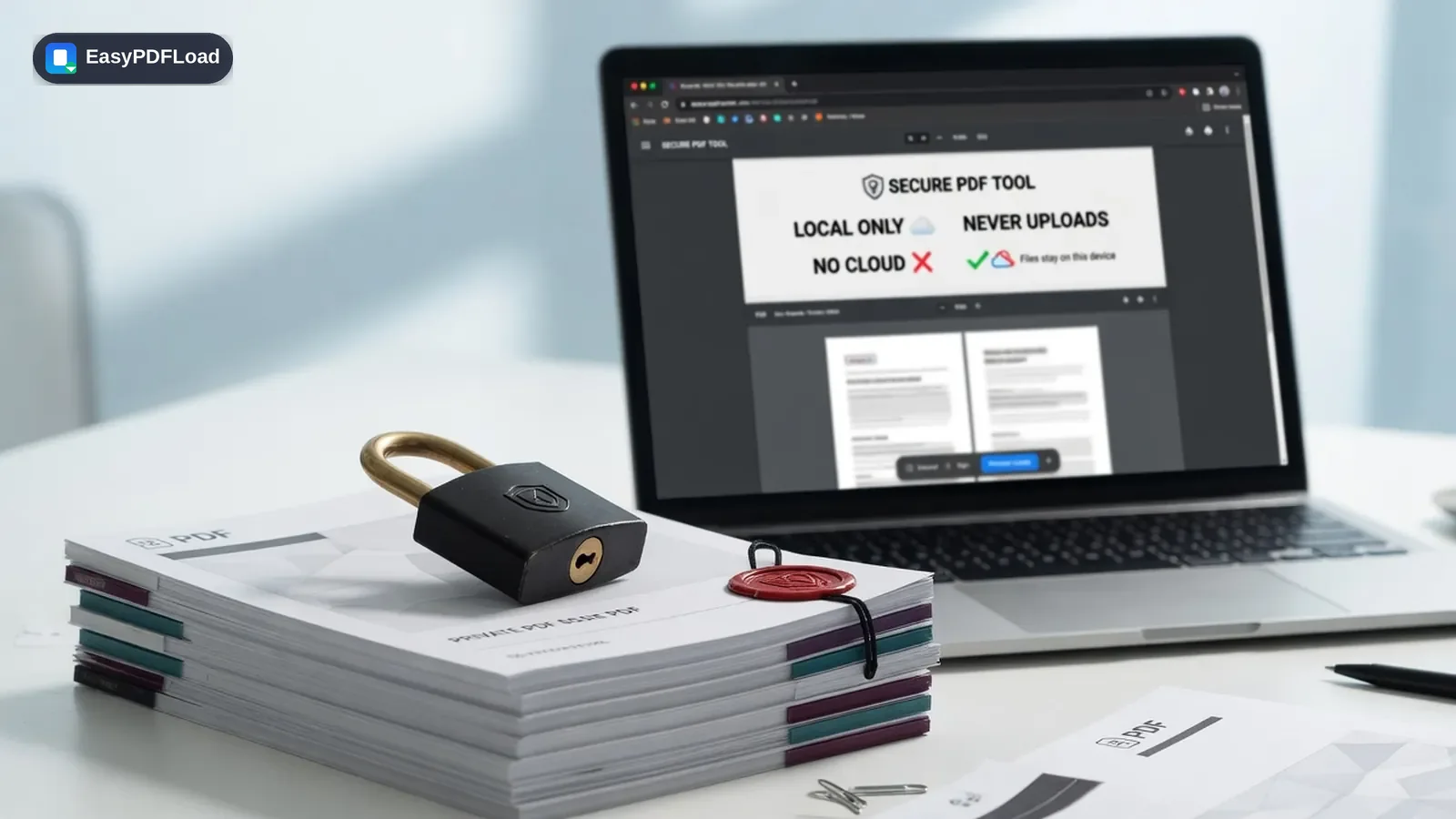
Encryption runs through pdf-lib's built-in AES-based encryption directly in this tab: your chosen password(s) and permission flags are written into the PDF's security dictionary, and the file is re-saved as an encrypted document — all in browser memory. Nothing about the file or the passwords you type is ever sent over the network; open DevTools' Network tab while you protect a file and you won't see a request carrying either one. The output is a standard encrypted PDF that opens in Adobe Acrobat and other major readers using the password(s) you set, the same way any password-protected PDF does.
How to protect pdf
 1
1Drop the PDF
Drop the PDF you want to protect into the tool — it stays on your device.
 2
2Set a password
Set an owner password (and optionally a separate password required just to open the file).
- 3
Choose restrictions
Choose which permissions to restrict — printing, copying, editing, or annotating.
 4
4Download the locked file
Click "Protect PDF" and download your encrypted file.
Why trust Protect with sensitive files?
- 🔐 Password protect a PDF before emailing sensitive documents like tax forms, contracts, or medical records.
- 🎚️ Restrict printing, copying, or editing independently of the open password, so you control exactly what recipients can do.
- 🔒 Your password and file never leave your device — encryption is applied entirely in your browser.
- 💸 Free to use, using standard AES-based PDF encryption compatible with Adobe Acrobat and other major readers.
A real use case
A tax preparer needs to email a completed return to a client but wants to be sure only that client can open it, and that nobody can print or forward a copy without a password. Set an owner password, add a separate open password, and disable printing — the client enters the password once to view the return, and the file can't be reprinted or edited without it.
Limits and edge cases
- The source file must be unencrypted to begin with — protecting an already password-protected PDF isn't supported; unlock it first if you need to change its password or permissions.
- Permission restrictions (no printing, no copying, and similar) are enforced by PDF readers that respect them; they're a deterrent for casual use, not an unbreakable technical barrier against a reader that ignores them.
- Forgetting a password you set yourself means the file can't be recovered here or anywhere else — there's no reset flow, because there's no account or server holding a copy.
- Very large PDFs (hundreds of megabytes) can take longer to re-save as an encrypted file, since the whole document is processed in your browser's memory rather than on a server.
What a permission restriction actually stops
An open password genuinely blocks anyone without it from viewing the file at all. Permission restrictions — no printing, no copying, no editing — work differently: they're honored by compliant PDF readers, not baked in as an unbreakable technical wall.
| Restriction | What Adobe Acrobat and most readers do | Realistic expectation |
|---|---|---|
| Open password | Refuse to open the file without the correct password. | A real barrier — the content is encrypted, not just hidden. |
| No printing | Gray out or block the print command in the reader's UI. | A deterrent for casual use, not protection against a reader built to ignore it. |
| No copying | Disable text selection and the copy command. | Stops a quick copy-paste; doesn't stop a photo of the screen or OCR on a printout. |
| No editing | Lock form fields and page content from modification. | Prevents casual edits in a compliant reader, not a guarantee against every tool. |