Split PDF Files
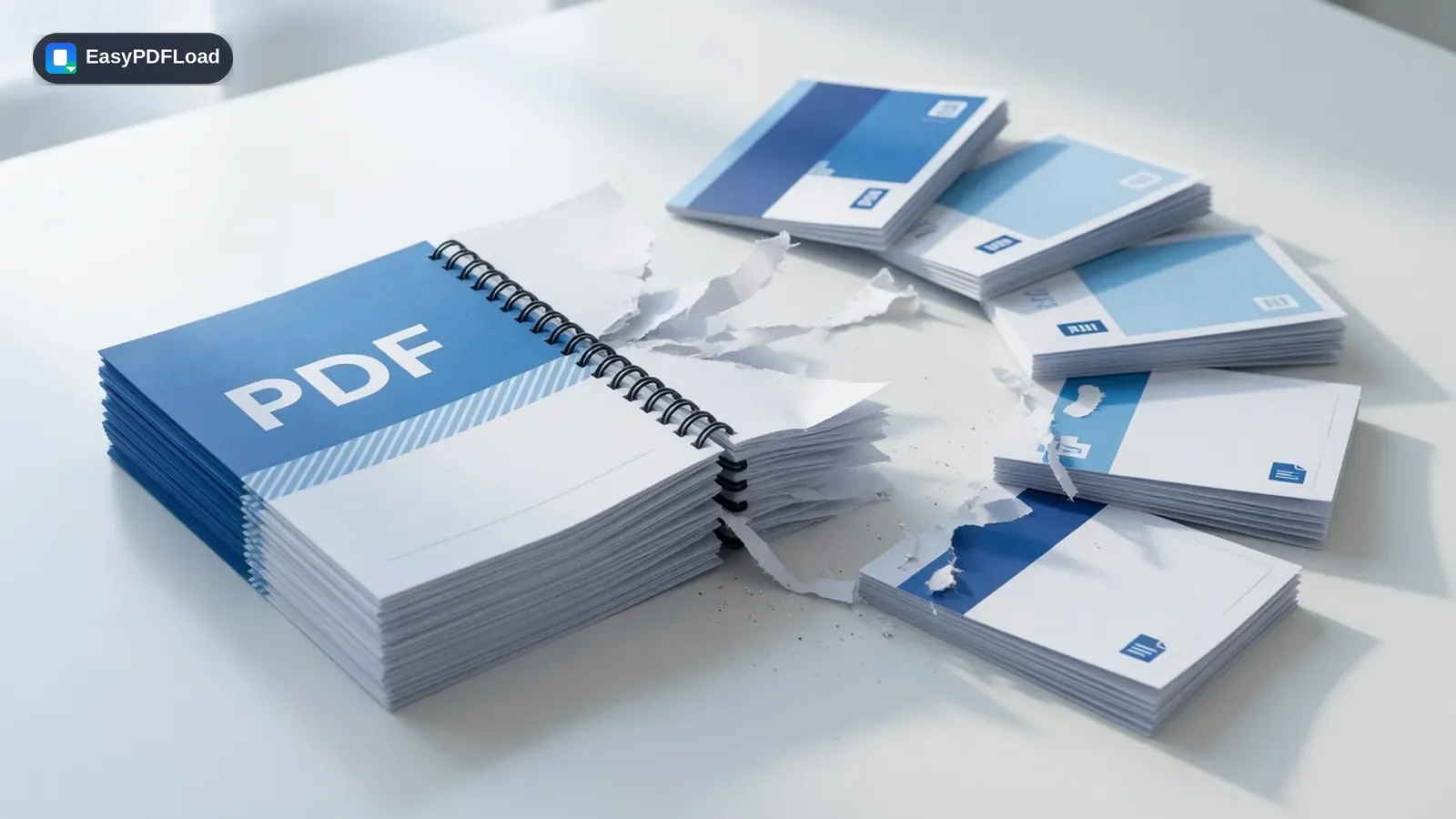
Break a single PDF into multiple files — split every page into its own document or pull out a specific range of pages. Everything runs locally in your browser for full privacy.
Drop your file here, or click to choose
How to split pdf
 1
1Drop the PDF
Drop the PDF file you want to split into the tool — it stays on your device.
 2
2Choose how to split
Choose whether to split into individual single-page files or specify a page range.
- 3
Split the file
Click "Split PDF" to process the document.
 4
4Download the ZIP
Download the resulting files as a ZIP archive.
Why use our Split PDF tool?
- ✂️ Split a PDF into individual pages or pull a specific range — useful for separating a scanned batch into per-invoice or per-chapter files.
- 🔒 Runs entirely in your browser, so there's no need to hand a full document over to a third-party server just to break it apart.
- 📦 Get every resulting file in one ready-to-download ZIP instead of saving pages one at a time.
- 💸 Free with no page-range limits or forced watermark on the split output.
A real use case
A property manager gets one 40-page PDF of signed leases for every unit in a building and needs to email each tenant just their own lease. Split every page into its own file, match filenames to unit numbers, and attach each one to the right tenant's email — instead of screenshotting or re-scanning forty pages by hand. The same idea works for a scanned batch of paper receipts turned into one PDF at the print shop: split it back into per-receipt files before filing an expense report, or pull just the signature page out of a long contract with the page-range option instead of splitting the whole thing.
What actually happens to your file
Splitting works like merging in reverse: pdf-lib opens the source file once in this tab and copies the pages you ask for — either every page into its own document, or the exact range you type — into brand-new PDF objects. No page is rendered as an image or re-encoded, so text stays selectable and images stay at their original resolution. Choosing "every page" bundles the results into a ZIP client-side with JSZip; a custom range skips the ZIP step and downloads a single PDF directly. Either way, the zipping and page-copying happen in this tab's memory — there's no upload, and no server ever assembles a ZIP on your behalf.
Limits and edge cases
- Splitting every page of a very long PDF into a ZIP happens entirely in your browser's memory, so a huge scan can be slower on an older phone than on a desktop.
- The page-range field accepts patterns like 1-3, 5, 8-10, but doesn't support reverse ranges (10-8) or numbering from the end — count from the front.
- Splitting a password-protected PDF isn't supported directly; unlock it first with Unlock PDF, then split the unlocked copy.
- Each split file keeps its original page size and embedded fonts, so quality and formatting match the source page exactly — splitting never re-renders content.
Split, Extract, or Delete — which one actually does what you need?
| You want to... | Use this tool | What you get |
|---|---|---|
| Break one PDF into many files | Split PDF (this tool) | One file per page, or one file per page range, zipped together. |
| Pull a few pages into one new file | Extract PDF Pages | A single new PDF containing only the pages you picked. |
| Remove a few pages, keep the rest as one file | Delete PDF Pages | The original document minus the pages you removed. |