Merge PDF on Chromebook and More: No Play Store App Needed
Merge PDF on Chromebook, then sign or fill out the result, with tools that run as regular web pages in Chrome. That matters on a Chromebook, since plenty of them (especially school- or work-managed ones) don't allow installing Android apps from the Play Store at all.
ChromeOS cannot merge PDFs on its own. It can annotate, sign, fill in and reorder the pages of one PDF. Combining several files, shrinking one or locking one needs a tool that runs in the browser.
What your Chromebook can already do
The Gallery app opens PDFs and lets you fill in form fields, add text, highlight, draw with a pen, and create a signature you can place in several spots. Google's help page also documents rotating pages and reordering them by dragging. For marking up a worksheet or signing a permission slip you need nothing else.
Printing to a PDF is built in too. Press Ctrl + P and choose Save as PDF instead of a printer. It is the quickest way to turn a web page, a Google Doc or an email into a PDF. On ChromeOS, Chrome's PDF viewer can also recognise text in a scanned PDF so you can search it.
Where ChromeOS stops
Google's Gallery documentation covers editing one PDF. It does not describe combining several PDFs into one, compressing a file to fit an upload limit, or adding a password, and Gallery's drawing tool does not redact (the text under a black mark can still be selected). Those are the jobs that send people looking for a tool.
How to merge PDFs on a Chromebook
- Open the Merge PDF tool in Chrome.
- Choose your PDFs from the Files app, or drag them in from another window.
- Put them in the order you want by dragging the cards.
- Run the merge, then download the combined file to your Downloads folder.
This is the most common Chromebook PDF request, usually because an assignment portal wants one file. Two PDFs or twenty work the same way.
How to combine photos of pages into one PDF
Handwritten work is usually submitted as photos. Take one photo per page, then open Images to PDF, add the pictures, put them in order and download a single PDF. JPG to PDF does the same for JPG files, and PNG to PDF for screenshots.
How to make a PDF fit an upload limit
Open Compress PDF to an exact size, pick the number the portal prints, and download the result. Scanned work shrinks a lot. A typed document barely shrinks, because there was never much in it to remove.
How to pull a few pages out of a long PDF
Use Extract PDF Pages, tick the pages you want and download them as a new file. Delete PDF Pages works the other way round when it is easier to name what to remove.
How to remove a password you already know
Unlock PDF needs the current password and removes it from the copy you download. It cannot break a password you do not have.
If it is a school or work Chromebook
An administrator can block the Play Store, Linux, extensions and app installs. A website that does its work inside the tab needs none of those permissions, so there is nothing for the policy to refuse. Nothing is uploaded either, so no student data crosses the network.
This is not a way around a block your school set on purpose. If your school filters this website, it is blocked and you should ask them.
Limits on a Chromebook
Entry-level Chromebooks often have 4 GB of memory, and the work happens in yours. A very large scan can be slow or fail, and a file of a couple of hundred megabytes may be too much. Once a tool page has loaded you can go offline and keep working, but a closed tab will not reopen offline, and OCR needs a connection for its first run.
No admin permission required
If your Chromebook is managed by a school or employer, installing apps is often blocked entirely. A tool that's just a webpage sidesteps that restriction completely — there's nothing to "install" for an admin to approve or deny.
Works the same in any Chrome window
Open it in a regular tab, an app window, or even Guest Mode — Chromebooks don't need anything extra installed for a website to work fully.
Merge PDF on Chromebook without uploading
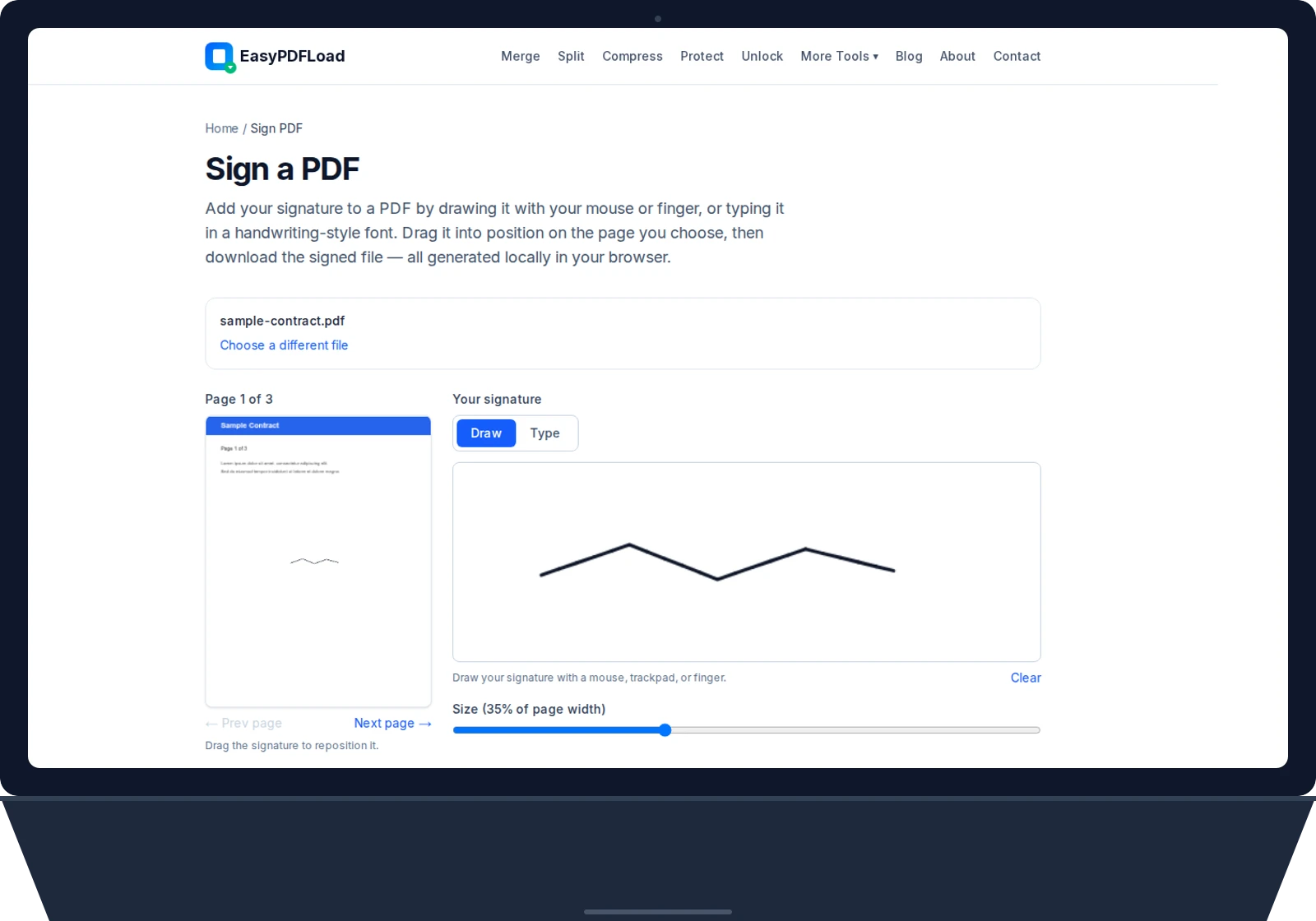
Filling out a form or signing a document happens locally in Chrome's JavaScript engine, not on a remote server — the same privacy story as every other tool on this site.
Tools that work great on Chromebook
Every other tool on the site works the same way on a Chromebook — see the full list.
Tips for using these tools on Chromebook
- 1Use the Files app's "Open with" menu on a PDF and choose Chrome if you want to jump straight into a tool from a downloaded file.
- 2Trackpad or touchscreen both work fine for drawing a signature — whichever your Chromebook has.
- 3On a school Chromebook, bookmark the specific tool page you use most (like Fill & Sign) so it survives a profile reset at the end of the school year.