Convert JPG to PDF
Combine one or more images into a single PDF file. Reorder the images, choose page orientation, and export a ready-to-share document.
Drop your file here, or click to choose
Select one or more JPG or PNG images
Why convert with JPG to PDF instead of desktop software?
- 📄 Turn scanned photos, receipts, or screenshots into a single PDF that's easy to email or upload as one file.
- 🔀 Mix JPG and PNG images in one document and reorder them before you convert, instead of converting each image separately.
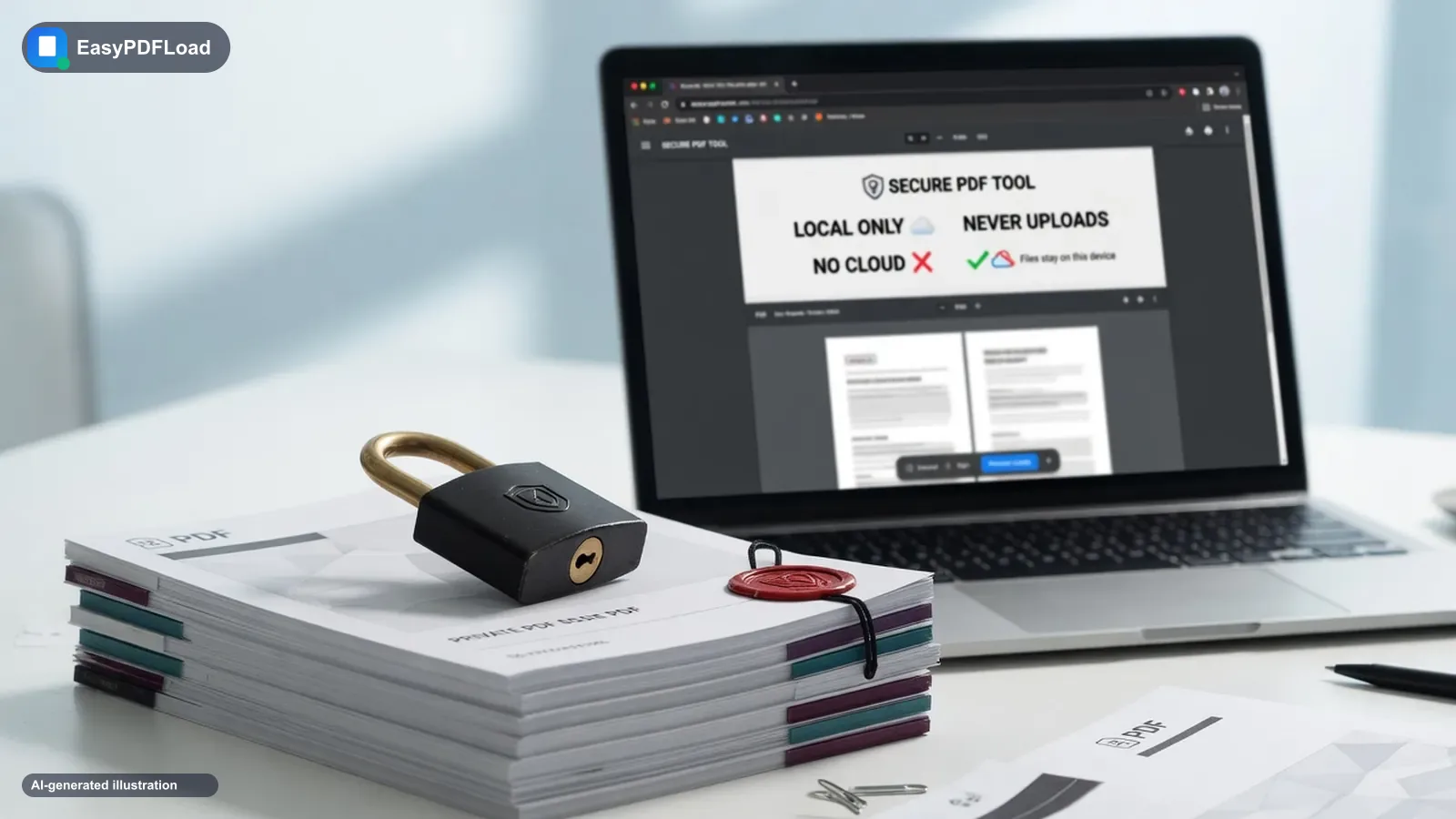
- 🔒 Images are combined locally in your browser, so photos of IDs or documents aren't sent to a server to become a PDF.
- 💸 Free, no sign-up, and no watermark stamped on the resulting file.
Converting with JPG to PDF, step by step
 1
1Drop images
Drop one or more JPG or PNG images into the tool — they stay on your device.
 2
2Reorder the pages
Drag to reorder the images into your preferred page sequence.
- 3
Set layout
Choose page orientation and margin settings.
 4
4Download the PDF
Click "Convert to PDF" and download your file.
Where this comes up
A student photographs eight handwritten homework pages with their phone and needs to submit one PDF to an online portal that rejects individual image uploads. Drop the eight JPGs in, drag them into the order the pages were written, pick portrait orientation, and convert — one PDF, correctly ordered, ready to submit.
How the conversion actually works
pdf-lib's JPEG decoder reads each image's pixel data directly in this tab and embeds it onto a new PDF page sized to the orientation you picked, scaling the photo to fit within your chosen margins. No image is uploaded to a conversion server; the decode, embed, and page-assembly steps all run in your browser, and the finished PDF is written to memory and handed straight to your download.
What to know before you convert
- Each image becomes one page sized to fit your chosen orientation — this tool doesn't crop or auto-rotate a sideways photo for you, so straighten images before converting if needed.
- Very high-resolution photos (multi-megapixel phone camera shots) take a little longer to embed than a compressed web image, and a large batch is more of a memory load on an older phone.
- Image quality is preserved as embedded, not upscaled — a blurry or low-resolution source photo will look the same inside the PDF, not sharper.
- This is the same underlying tool as PNG to PDF — mixing JPGs and PNGs into one document works identically from either tool's page.
Before you convert: three things that catch people out
- 1
Sideways photos stay sideways
This tool doesn't auto-rotate a photo taken with the phone turned — straighten each image before you drop it in, or the page will match the photo's orientation.
- 2
Order follows the order you drop or arrange them in
Pages come out in the sequence shown in the tool, not the order your file manager happened to list them. Drag them into place before converting.
- 3
A phone photo and a compressed thumbnail don't scale the same
Mixing a full-resolution photo with a small, heavily compressed screenshot in one document is fine, but each page's clarity will reflect its source image — one won't sharpen the other.
Frequently asked questions
Can I mix JPG and PNG files together?+
Can I control the page size?+
Can I turn iPhone photos into a PDF without the Photos app's built-in option?+
Related tools
Related guides
Using a phone or tablet? See our iPhone & iPad guide for device-specific tips.