Compress PDF Files
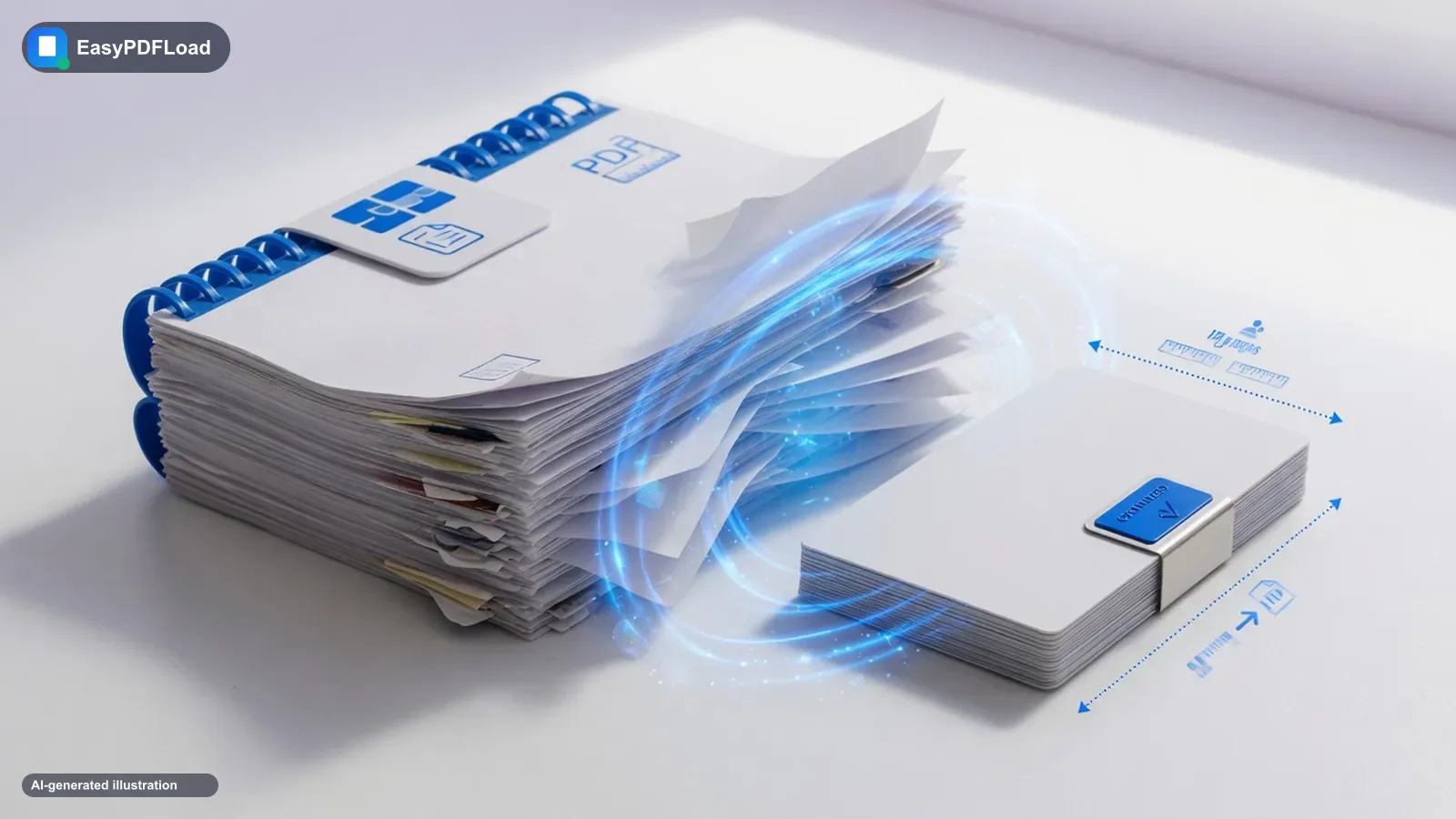
Reduce PDF file size without losing quality by re-compressing embedded images in this tab. Recommended compression often cuts scans 50–90% so the file fits under Gmail’s 25 MB limit — nothing is uploaded.
Drop your file here, or click to choose
Higher compression reduces image quality but produces a smaller file. Estimates are approximate, based on a sample of pages.
How to compress pdf
 1
1Drop the PDF
Drop the PDF file you'd like to compress into the tool — it stays on your device.
 2
2Pick a compression level
Pick a compression level: Low, Recommended, or Extreme.
- 3
Compress
Click "Compress PDF" and wait a few seconds for processing.
 4
4Download the smaller file
Download your smaller PDF file.
What compression actually does to your file
Compression works differently from merge or split: pdf.js renders each page of your source file onto an in-memory canvas at a resolution set by the level you pick, that canvas is re-encoded as a JPEG at a matching quality setting, and pdf-lib embeds the JPEG into a new output PDF — one image per page. That's why compression can shrink a scan-heavy file so dramatically: it genuinely re-encodes the images rather than just recompressing a wrapper. The trade-off worth knowing before you compress: because every page becomes a single embedded image, text that was selectable and searchable in the original is not selectable or searchable in the compressed output — the words are now pixels, the same as a photograph of the page. For a document that was already just a scan, nothing is lost. For a PDF exported from Word or Google Docs with real text, compressing it trades searchability for file size, so keep the original if you'll need to search or copy from it later.
Why compress with Compress PDF instead of Adobe?
- 📉 Shrink a PDF for email or an upload form with a strict size limit, without installing desktop compression software.
- 🎚️ Three compression levels (Low, Recommended, Extreme) let you trade file size for image quality on your terms.
- 🔒 Compression happens on-device, so a large, possibly sensitive PDF never leaves your computer just to make it smaller.
- 💸 No file-size ceiling from us and no forced watermark — just a smaller PDF, free.
A real use case
A real-estate agent scans twelve pages of a signed purchase agreement at 600 DPI on a phone and ends up with a 38 MB PDF that bounces back from Gmail's 25 MB limit. Running Recommended compression on a scan-heavy file like that typically drops it 50–90%, comfortably under the limit, without retyping or reprinting a single page.
Limits and edge cases
- Compression rasterizes every page to a JPEG image, so selectable or searchable text in the source becomes a flattened image in the output — see the note above before compressing something you'll need to search or copy from.
- Estimated sizes shown next to each level are approximate, sampled from a handful of pages rather than the whole document, so the final result can differ slightly from the preview.
- Extreme compression can visibly soften small text and fine image detail; if a page looks blurry, re-run the original file (not the already-compressed one) at Recommended or Low.
- Compressing an already-compressed PDF repeatedly adds JPEG artifacts each pass — always start from your best original file.
The three levels, and the settings each one actually uses
This isn't a marketing scale — each level re-renders your pages at a specific resolution and JPEG quality, and the settings below are exactly what the tool runs. Your own result depends on how image-heavy your source PDF is, so treat this as how the levels differ from each other, not a promised output size.
| Level | Render scale | JPEG quality | What that means |
|---|---|---|---|
| Low | 1.5× | 85% | Smallest cut in size; images stay close to their original sharpness. |
| Recommended | 1.2× | 70% | The balance most scans should use — text stays legible at 100% zoom. |
| Extreme | 0.9× | 45% | Biggest cut in size; fine print and small detail visibly soften past 100% zoom. |