Add a Watermark to a PDF
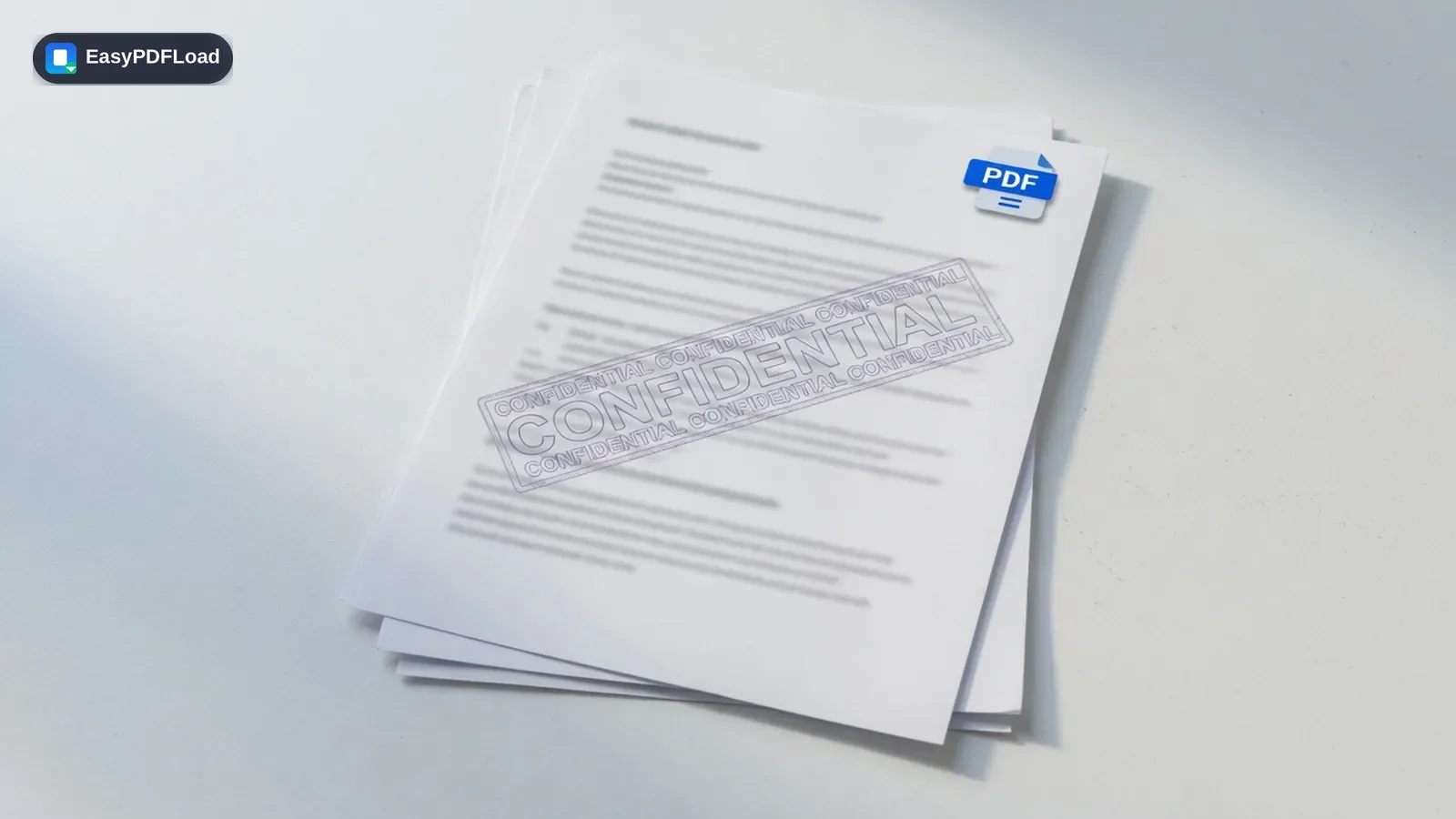
Stamp a custom text watermark — like "CONFIDENTIAL", "DRAFT", or your company name — across every page of your PDF, with full control over opacity, size, rotation, and position.
Drop your file here, or click to choose
How to add watermark in your browser
 1
1Drop the PDF
Drop your PDF onto the upload area. A page 1 preview appears beside the controls, with a Text and Image switch above them.
 2
2Type the watermark
In Text mode, type your wording (it starts as CONFIDENTIAL), then choose a font, size and color. In Image mode, upload a PNG or JPG and set its width as a share of the page.
- 3
Preview
Adjust Opacity (starts at 30%) and Rotation (starts at 45 degrees). In Image mode you can also drag the picture in the preview to move it.
 4
4Download
Press Save PDF with Watermark. The file downloads under your original name plus -watermarked, and the source file is untouched.
A real use case
A freelance designer sends a pricing proposal before any contract exists. She types PROPOSAL ONLY, picks Helvetica Bold in light gray at low opacity and a 30 degree angle, and stamps every page. The client can read every figure, but the file cannot be passed off as a signed quote.
Why edit with Watermark in your browser?
- Mark drafts, internal copies or paid material so a forwarded file still carries its status on every page.
- Choose typed text or a PNG or JPG logo, with separate control over opacity, rotation and color.
- Stamping runs in your browser tab with pdf-lib, so the document does not need to be sent to a server.
- Six built-in fonts (Helvetica, Times Roman and Courier, regular and bold) look the same on any device.
What this changes in your file
When you press the button, the page reads your PDF into memory, loads it with pdf-lib, and draws one text or image item on each page, on top of the existing content. The result is offered as a download from the same tab. This component has no upload step. To check, open the developer tools Network tab, run a watermark, and look for a request carrying your file. Closing the tab discards everything.
Limits and edge cases
- The watermark is a single item near the center of each page. It does not tile or repeat.
- Text uses the six standard PDF fonts, which cover Western European characters. Cyrillic, Greek, Arabic or Chinese text cannot be encoded and ends in the generic error message.
- Text does not wrap. A long phrase at a large size can run past the page edge, so shorten it or lower the size (10 to 120).
- Every page gets the same mark and settings. Different wording per page needs separate runs.
- A password-protected PDF cannot be opened for stamping. Remove the password first.
- The mark sits above the content as ordinary page content, so an editor may be able to remove it. Treat it as a label, not protection.
Watermark a PDF: picking settings for the job you have
The same controls produce very different results depending on the purpose. These are starting points built from the real ranges in the tool, so adjust them against the preview.
- Draft or confidential label. Keep the default gray, Helvetica Bold, 30% opacity and a 45 degree angle. Short capital words fit the page width at the default size of 48.
- Company logo. Use Image mode with a PNG that has a transparent background, around 20% to 40% width, and drag it into a corner. Lower the rotation to 0 so it sits level.
- Scanned pages or photos. Busy backgrounds hide pale marks, so raise opacity to 50% or more, or choose a dark or red color instead of gray.
- Long phrase. Text never wraps, so cut the size well below 48 or use two runs with shorter wording rather than letting it leave the page.
After stamping, a large file can be shrunk with Compress PDF, and numbering the pages is done with Add Page Numbers. If the document also needs a password, run Protect PDF last, because a protected file cannot be stamped afterwards.