PDF Tools for Chromebook — No Play Store App Needed
Every tool here runs as a regular web page in Chrome — which matters a lot on a Chromebook, since plenty of them (especially school- or work-managed ones) don't allow installing Android apps from the Play Store at all.
No admin permission required
If your Chromebook is managed by a school or employer, installing apps is often blocked entirely. A tool that's just a webpage sidesteps that restriction completely — there's nothing to "install" for an admin to approve or deny.
Works the same in any Chrome window
Open it in a regular tab, an app window, or even Guest Mode — Chromebooks don't need anything extra installed for a website to work fully.
Your files never leave the device
Filling out a form or signing a document happens locally in Chrome's JavaScript engine, not on a remote server — the same privacy story as every other tool on this site.
Tools that work great on Chromebook
Every other tool on the site works the same way on chromebook — see the full list.
Tips for using these tools on Chromebook
- 1Use the Files app's "Open with" menu on a PDF and choose Chrome if you want to jump straight into a tool from a downloaded file.
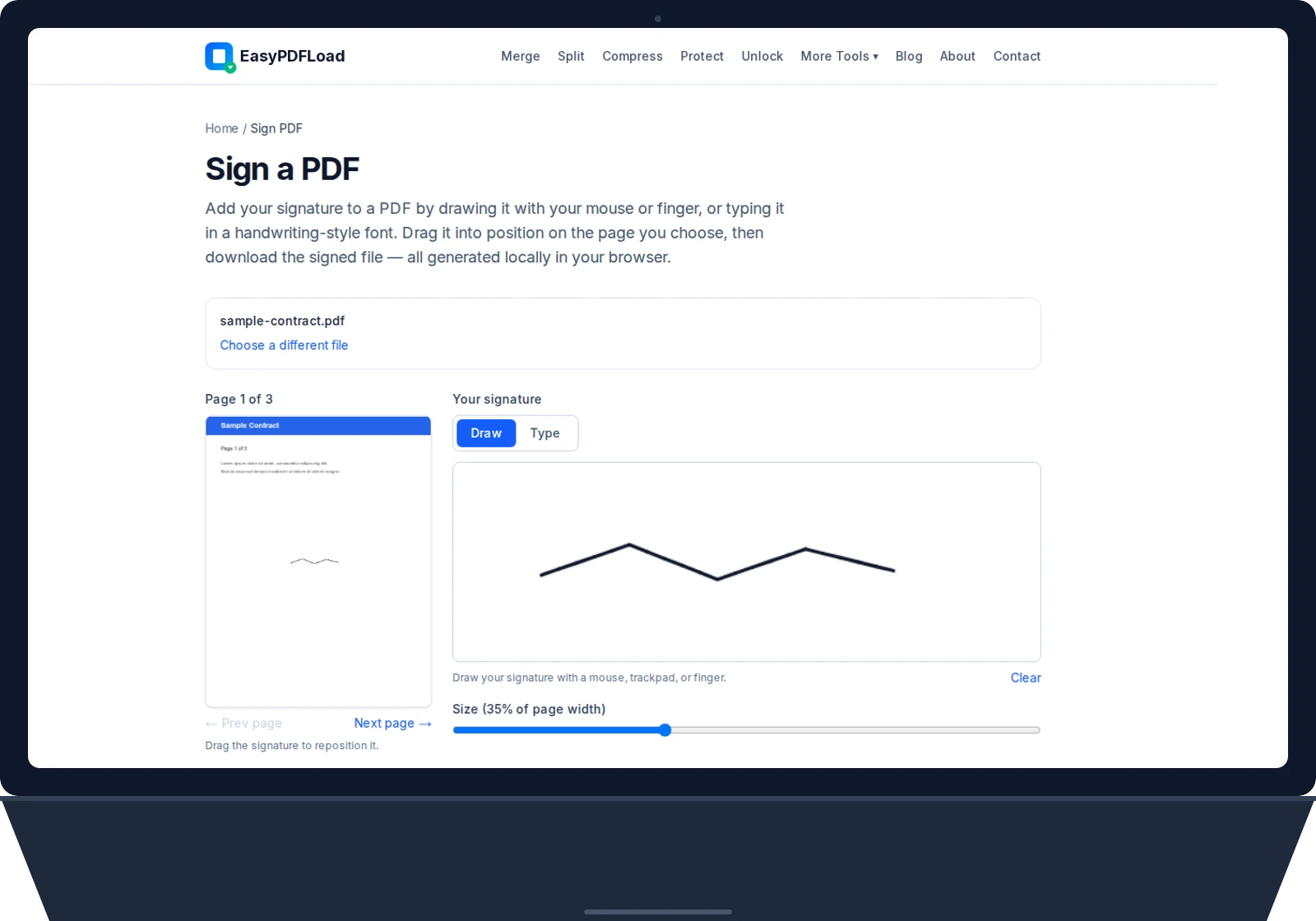
- 2Trackpad or touchscreen both work fine for drawing a signature — whichever your Chromebook has.
- 3On a school Chromebook, bookmark the specific tool page you use most (like Fill & Sign) so it survives a profile reset at the end of the school year.