Add Page Numbers to a PDF
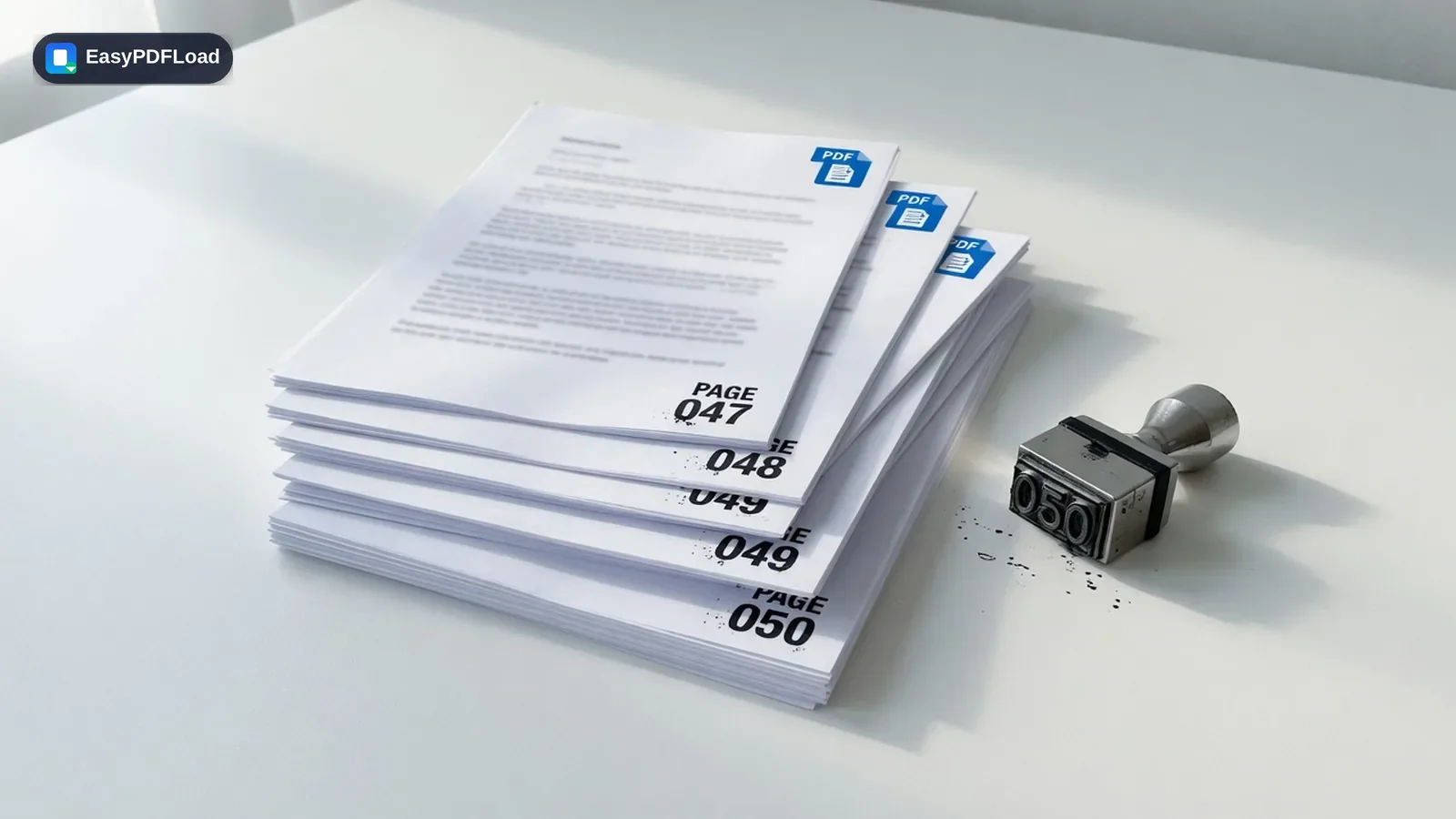
Insert page numbers anywhere on the page — bottom center, bottom right, top corners — with a custom starting number and format.
Drop your file here, or click to choose
How to add page numbers in your browser
 1
1Drop the PDF
Drop the PDF onto the upload area, or click it to browse. The file is read in this tab, and a first-page preview appears once it loads.
 2
2Choose position & start
Pick a Position from the dropdown (bottom center is the default), then set the Start number, Font, Font size (12 by default) and Color.
- 3
Preview
Check the small Preview panel. It shows page 1 with the first number drawn at your chosen spot, size and color, and it updates as you change settings.
 4
4Download
Press Add Page Numbers. The browser downloads a new file named after your original with -numbered.pdf added, and the source file is left alone.
A real use case
A landlord assembles a 14-page lease packet from three scanned documents and wants a running page count so tenants can cite clause locations. After merging the scans, the packet goes into this tool with bottom right placement, a dark grey color and size 11. The download has 1 to 14 in the corner of every page, ready to print and initial.
Why edit with Page Numbers in your browser?
- Six built-in fonts (Helvetica, Times Roman and Courier, regular and bold) and a color picker let the numbers blend into a report or stand out on a draft.
- Five placements cover the usual layouts: bottom left, center and right, plus top center and top right for documents that keep the footer for something else.
- The Start number field lets you continue a sequence from another file, for example starting a second volume at 101.
- Nothing is uploaded, and no watermark or extra branding is added to the pages.
What this changes in your file
The PDF is loaded into memory with pdf-lib inside your browser tab. For each page the tool measures the number in the chosen font, works out the position from the page size and a 28 point margin, and draws it as real text over the existing content. The result is saved in memory and offered as a download. To confirm nothing is sent, watch your browser's Network tab while it runs.
Limits and edge cases
- Every page is numbered. There is no field for skipping a cover or choosing a page range, so leaving pages unnumbered means splitting the file first and merging afterwards.
- The output is only the plain number. There is no Page 3 of 20 format, prefix, suffix or Roman numeral option.
- The Start number field falls back to 1 when given 0 or an empty value. Font size accepts 6 to 36 points.
- The preview only shows page 1, while every later page is placed from its own size.
- Numbers are ordinary text stamped once. If you delete or reorder pages afterward, the existing numbers stay as they are.
- A password-protected or damaged file fails to load and you get a generic error message. Unlock it first.
Add page numbers to a PDF: when the numbers do not land where you wanted
- The cover should stay blank
- Cut the cover off with Split PDF, number the rest starting at 1, then join the two with Merge PDF.
- A page looks sideways or the number sits on the wrong edge
- Pages saved with a rotation flag can place text relative to their unrotated layout. Straighten the page with Rotate PDF first, then number the file.
- The number collides with a footer
- Switch to a top position, or change the size or color until the preview reads clearly.
- You want proof the file stayed local
- The guide to checking for uploads walks through the Network tab check.