Rotate PDF Pages
Fix pages that are sideways or upside down. Rotate every page at once or set a different rotation for each page individually.
Drop your file here, or click to choose
How to rotate pdf in your browser
 1
1Drop the PDF
Drop one PDF onto the drop zone. Page thumbnails load in a grid, and you can use "Change file" to swap in a different document.
 2
2Select pages
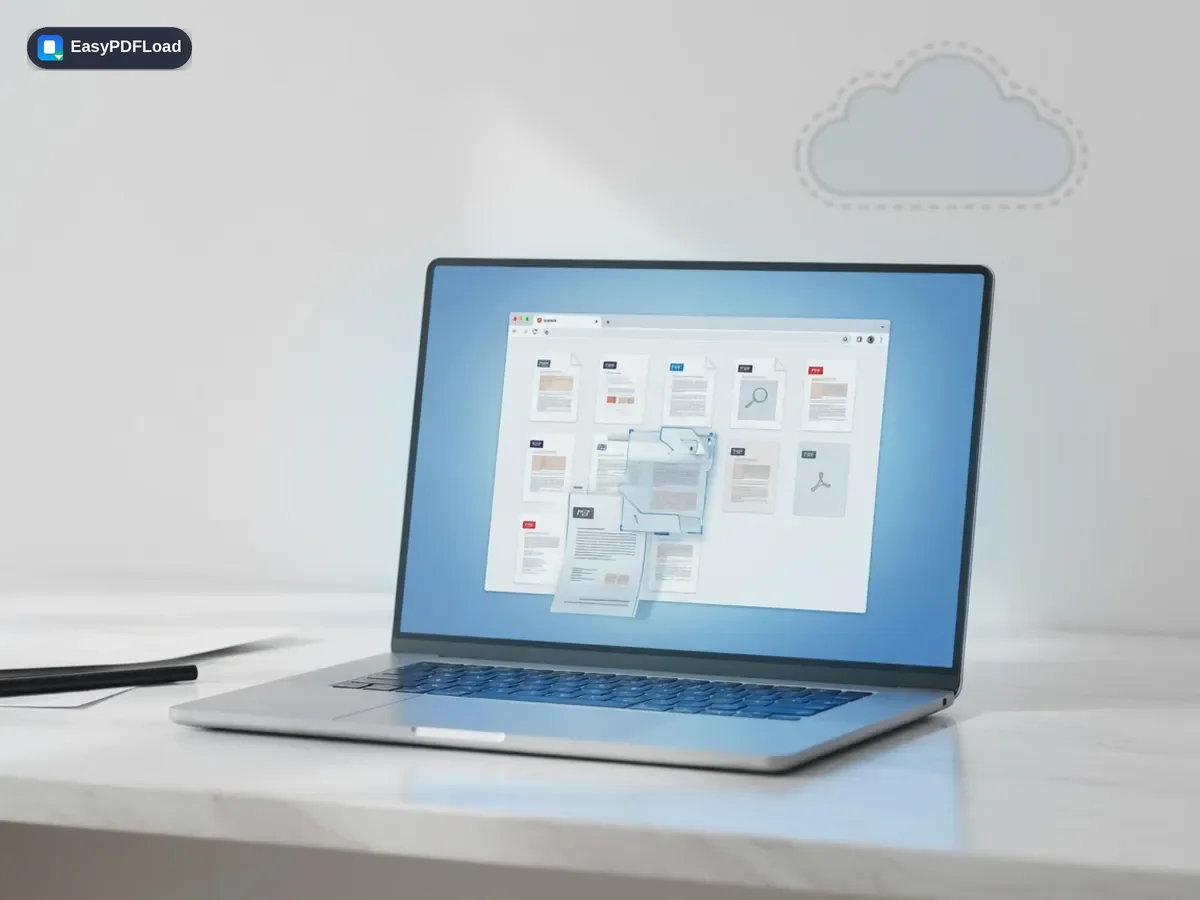
To turn everything, use the two "Rotate all" buttons above the grid (left or right). Each click adds a quarter turn to every page.
- 3
Choose a rotation
To fix only some pages, use the small left and right arrow buttons under each thumbnail. The thumbnail turns immediately so you can check the result before saving.
 4
4Download
Press "Rotate PDF". The file downloads as your original name plus "-rotated", and the original on your disk is left as it was.
A real use case
A tenant photographs a signed inspection report page by page and exports it from a scanner app. Pages 2, 5 and 6 came out landscape because the phone was tilted, and page 9 is upside down. They open the file here, tap the right arrow once under pages 2, 5 and 6, tap either arrow twice under page 9, glance at the grid, and download. The other pages are not touched.
Why edit with Rotate in your browser?
- Each page has its own left and right buttons, so one sideways page from a phone scan does not force you to turn the whole document.
- The thumbnail rotates as you click, which means you see the final orientation before anything is saved.
- Text stays selectable and images keep their resolution, because only the page's display angle is changed.
- There is no account, no watermark and no page count shown for you to pay past.
What this changes in your file
The PDF is read into memory by your browser, page previews are drawn locally, and pdf-lib then edits the document in the same tab. For each page you turned, it adds your change to the page's existing rotation value, so a page already set to 90 degrees and turned right once ends up at 180. The result is saved to memory and offered as a download. To verify, open the Network tab in your browser's developer tools, run a rotation, and check that no request carries the file.
Limits and edge cases
- There is no dedicated 180 degree button. Click a page's arrow twice, or use a "Rotate all" button twice.
- Only one file at a time is accepted, and there is no page range or "every second page" option. Alternating orientations must be set page by page.
- Encrypted or damaged files cannot be read. You will see a message about the PDF being corrupted or encrypted, or a generic error when saving.
- Pressing "Rotate PDF" without changing any page still produces a re-saved copy named with "-rotated", with no visible difference.
- Rotation changes display only. It does not straighten a slightly skewed scan or fix text that is drawn mirrored.
- The whole file and its page previews are held in your browser tab, so a very large scan is limited by your device's memory.
Rotate PDF pages: match what you see to the right click
- One page lies on its side. Click the right arrow under it if the top of the text points left, or the left arrow if it points right. Check the thumbnail before saving.
- Every page is upside down. Use a "Rotate all" button twice, since each click adds one quarter turn to every page. A page you had already turned individually keeps that turn and gets the extra rotation on top, so check for stragglers in the grid afterwards.
- Pages are turned correctly but have a dark border or crooked edge. That is a scan problem, not an orientation one. Trim it with Crop PDF after rotating.
- Pages are in the wrong order as well. Rotation never moves pages. Fix the sequence with Reorder PDF Pages, or remove stray sheets with Delete PDF Pages.
- Curious whether the file left your device? The steps in this guide to checking uploads work on this page too.