Extract Pages from a PDF
Pull out just the pages you need from a larger PDF and save them as a new, separate document — perfect for sharing only the relevant sections of a file.
Drop your file here, or click to choose
How to extract pdf pages in your browser
 1
1Drop the PDF
Drop one PDF onto the upload area. A grid of page thumbnails appears once rendering finishes, and the Extract button stays disabled until then.
 2
2Select pages to keep
Click each page you want to keep. Selected thumbnails get a blue border and a "Keep" badge, and a counter shows how many are selected. Click again to deselect.
- 3
Extract
Press the button, which reads "Extract 3 Pages" (or however many you picked). If nothing is selected you get a prompt to select at least one page.
 4
4Download the new PDF
Your browser saves a new file named after the original with "-extracted" added, for example contract-extracted.pdf. The original file is never modified.
A real use case
A tenant has a 60-page scanned lease and the property manager asks only for the signature page and the pet addendum. The tenant opens the file, clicks those two thumbnails and downloads a two-page PDF, instead of emailing a large file that also contains bank details on other pages.
Why edit with Extract Pages in your browser?
- Send one signed page or one chapter without forwarding the entire document and everything else in it.
- Thumbnails show the real page content, so you pick by what a page looks like instead of guessing at page numbers.
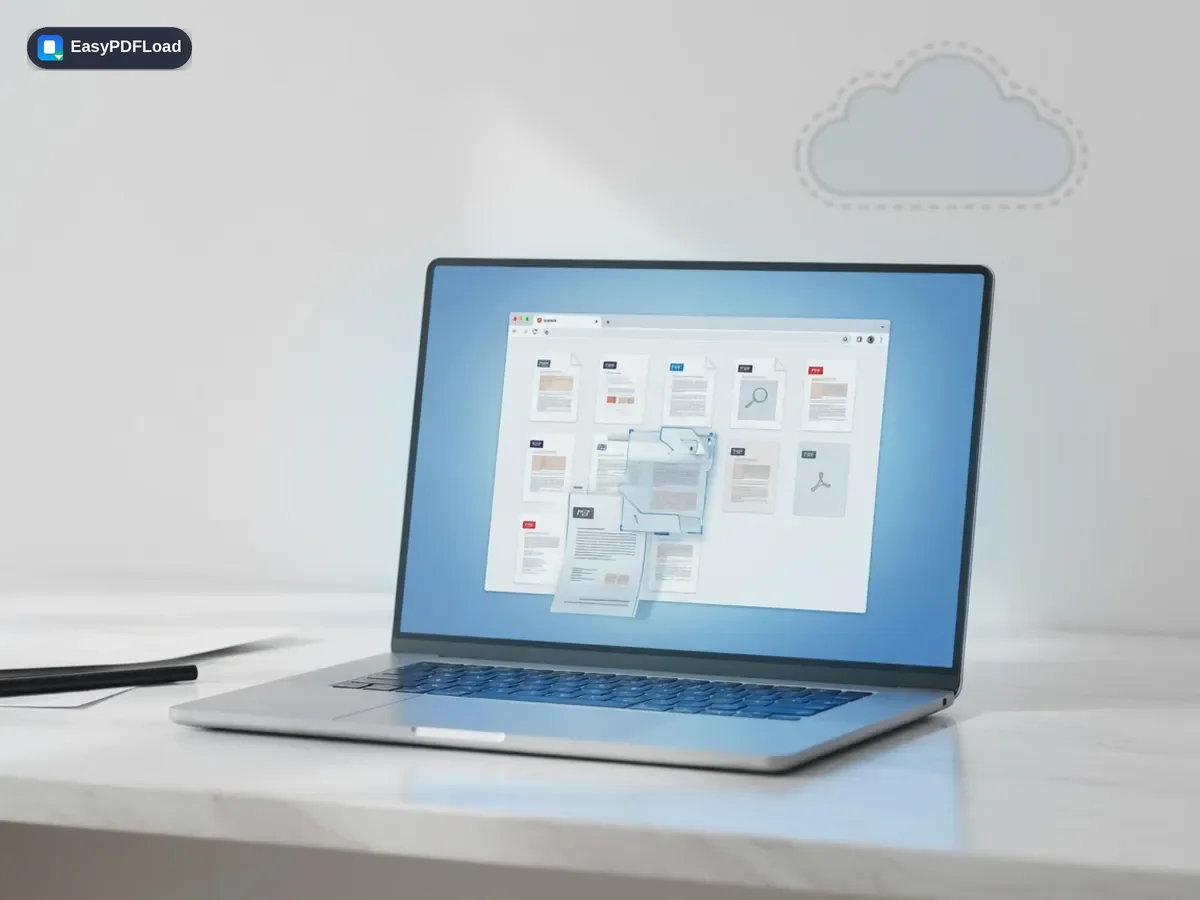
- The source PDF is read inside your browser tab, so getting a few pages out does not require uploading the whole file.
- Pages are copied as they are, so text stays selectable and images are not recompressed.
What this changes in your file
The file is read with the browser File API and loaded into pdf-lib in this tab. An empty second document is created, the chosen pages are copied into it as whole page objects, and the result is saved in memory and handed to your download. Thumbnails are drawn by pdf.js on canvas elements in the same tab. To check, open the Network tab before dropping a file: no request carries the document.
Limits and edge cases
- Pages always come out in their original order. If you click page 9 before page 3, the new file still has page 3 first. Use the Reorder tool afterward if you need another sequence.
- There is no page-range field and no select-all button. Every page is picked by clicking its thumbnail.
- Thumbnails for the whole document render before you can extract, so a large file takes noticeable time and memory in the tab.
- Encrypted or damaged files cannot be read, and the page shows an error instead.
- Each extracted page keeps its own size and orientation. Nothing is scaled, cropped or renumbered.
- Only one PDF can be loaded at a time. To combine pages from several files, extract from each, then use Merge.
A worked example: extract pages from a PDF, click by click
Say you open a 12-page report and click pages 9, 3 and 4, in that order. The counter reads "3 pages selected to keep", and the button reads "Extract 3 Pages". Here is what lands in the download.
- Page 3 of the report becomes page 1 of the new file.
- Page 4 becomes page 2.
- Page 9 becomes page 3.
The clicks were sorted by original position, so click order never matters. The other nine pages are simply not copied, and the report itself is untouched.
- Need page 9 to come first? Open the result in Reorder PDF Pages and drag it to the front.
- Keeping most of the document and dropping a few pages? Selecting the pages to discard in Delete PDF Pages is faster than clicking everything else here.
- Want every chapter as its own file? That is a job for Split PDF, not repeated extractions.