Convert JPG to PDF
Combine one or more images into a single PDF file. Reorder the images, choose page orientation, and export a ready-to-share document.
Drop your file here, or click to choose
Select one or more JPG or PNG images
Why convert with JPG to PDF instead of desktop software?
- Photos of receipts, forms or homework pages become one attachment for portals that accept a single file.
- JPG and PNG files can share a batch and be rearranged before conversion, instead of converting each on its own.
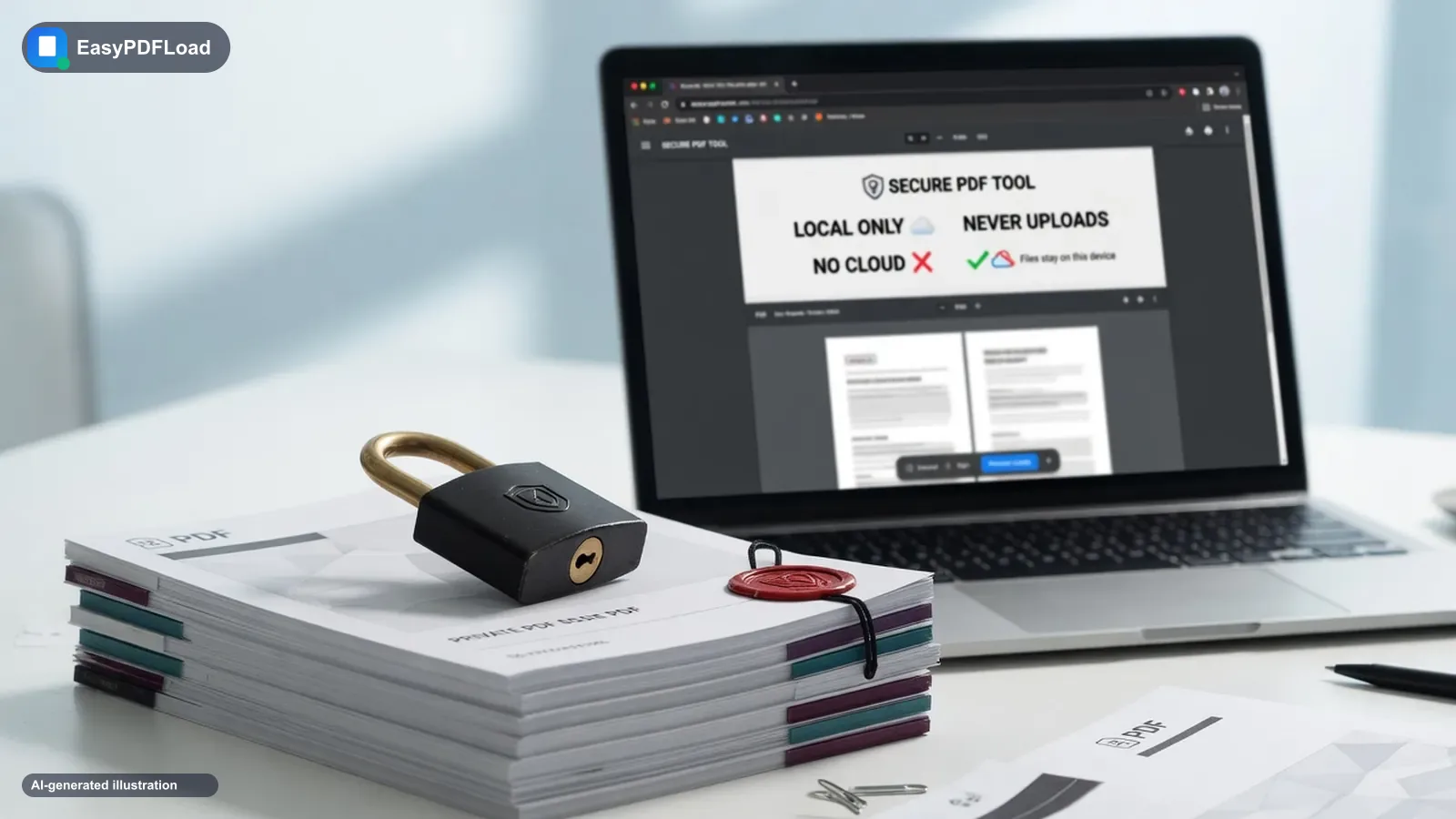
- Pages are built inside your browser tab, so a photo of an ID card or contract is not sent anywhere.
- No account, no watermark on the output, and no image-count cap set by the tool.
Converting with JPG to PDF, step by step
 1
1Drop images
Drop your JPG or PNG files onto the dropzone, or use its file picker to select several at once. Each one appears as a thumbnail card showing the file name and size, and you can add more files later.
 2
2Reorder the pages
Drag any thumbnail onto another card to move it. The grid order, left to right and top to bottom, is the page order. The small red cross on a card removes that image.
- 3
Set layout
Pick Portrait or Landscape. The choice applies to every page, and portrait is selected by default.
 4
4Download the PDF
Press Convert to PDF. The file downloads as images.pdf, with one page per image in the order shown.
Where this comes up
A landlord asks a tenant for proof of income and accepts only one PDF. The tenant has a phone photo of a payslip, a PNG screenshot from a banking app, and a scan of a signed letter as a JPG. They drop all three in, drag the letter to the front, keep portrait, and download images.pdf. The landlord gets one document instead of three mismatched attachments.
How the conversion actually works
Each file is read into memory with the browser's file API and embedded into a new document using pdf-lib. PNG files go through the PNG embedder and everything else through the JPEG embedder, chosen by the file's reported type. Every page is a fixed A4 size (595 by 842 points), flipped to landscape if you choose it. The image is scaled to fit inside the page and centred. The thumbnails are local previews of your own files. Nothing is sent to a server, and you can confirm this by opening the Network tab in your browser's developer tools and converting: no upload request appears.
What to know before you convert
- The page size is always A4, with no Letter option, custom size or margin control, so images that do not match A4 proportions leave blank space.
- Orientation is one setting for the whole document, so a wide screenshot cannot be landscape while the other pages stay portrait.
- Images are scaled to fit with no cap, so a small image is enlarged and can look soft or pixelated.
- If one file cannot be decoded, the whole conversion stops with an error and no PDF is produced. Remove the bad file and retry.
- Only JPG and PNG are accepted. Convert WebP, HEIC or GIF files first.
- Photo rotation metadata is not applied, so a sideways image may come out sideways even if its thumbnail looks upright.
When the PDF does not look the way you expected
Most surprises come from one fact: every image is placed on a fixed A4 page and scaled to fit. Here is what each symptom usually means.
- White bands above or below a photo
- The image's proportions differ from A4, so it is fitted and centred. Switching between portrait and landscape often reduces the blank space for wide screenshots.
- A page is sideways
- pdf-lib reads the JPEG width and height and ignores the EXIF orientation tag, so a phone photo can land sideways even when this preview looks upright. Fix the photo in an editor, or convert it and then turn the page with the Rotate PDF tool.
- A small image looks blurry
- It was enlarged to fill the page. Use a larger original if you have one.
- The file is too big to send
- Images are embedded at their original resolution. Run the result through Compress PDF.
- Pages are in the wrong order
- Drag the thumbnails before converting. After download, the Reorder PDF Pages tool can still fix it.
If the pictures are private, the guide to whether online PDF tools are safe explains what to check before you trust any converter.
Frequently asked questions
Can I mix JPG and PNG files together?+
Can I control the page size?+
Can I turn iPhone photos into a PDF without the Photos app's built-in option?+
Are my images uploaded to make the PDF?+
Why is my picture sideways in the PDF?+
Will the PDF be much bigger than my photos?+
Related tools
Related guides
Using a phone or tablet? See our iPhone & iPad guide for device-specific tips.